
How to Reduce VRAM Usage in Stable Diffusion
Introduction
Stable Diffusion and related image-generation workflows can run into GPU memory limits when model weights, text encoders, intermediate tensors, attention operations, and decoding stages exceed the available budget. The exact memory footprint depends on the model family, software version, output dimensions, batch size, precision, extensions, and optimization backend. A workflow that works on one system may fail on another even when the graphics cards have similar nominal capacity.
Graphics memory is one part of a broader system. Its behavior depends on the application, driver, operating system, data format, and the hardware that moves information between memory and processing units. A number displayed by a monitoring utility can be useful, but it should always be interpreted in context. A reliable explanation separates what is known from what is only a possible cause.
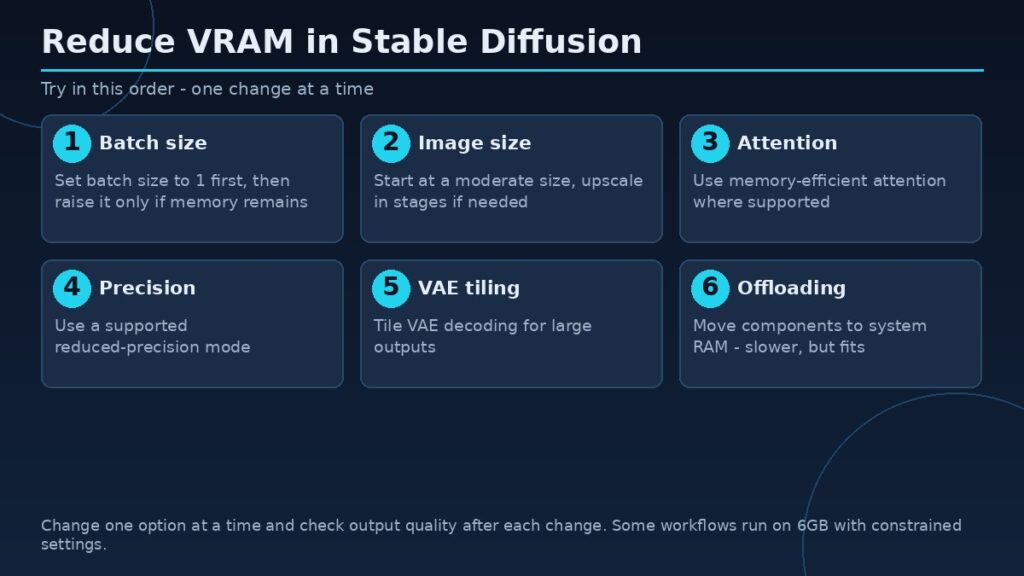
| Action | Effect / trade-off |
|---|---|
| Reduce batch size first | Larger batch size increases memory demand; set batch size to one as a diagnostic baseline |
| Use smaller image dimensions | Higher image dimensions increase intermediate feature-map and attention requirements |
| Use reduced precision (FP16) | Lowers memory use for suitable models |
| Use memory-efficient attention | Can reduce temporary memory requirements |
| Use VAE tiling | Processes sections separately; may introduce seams |
| Use CPU offloading | Moves components to system RAM; slower |
Quick answer
Reduce batch size first, then test a smaller image size, memory-efficient attention, supported precision, VAE tiling, or CPU offloading. Change one option at a time and check output quality and compatibility.
Important background
The GPU works with resources such as textures, geometry data, render targets, intermediate buffers, model weights, and application-specific data. These resources have different lifetimes and access patterns. Some remain resident for a long time, while others are created for a particular frame or operation. Applications may reserve memory to reduce future loading delays, and drivers manage a memory budget according to system conditions.
Capacity, bandwidth, and compute throughput are not interchangeable. Capacity is how much local data can be stored. Bandwidth is how quickly data can move. Compute throughput is how quickly operations can be processed. A workload can be constrained by one or several of these factors, and a change that helps one bottleneck may not help another.
Identify the actual pipeline
Record the checkpoint, model family, UI or inference framework, version, GPU, driver, precision, image dimensions, batch size, and extensions. Control modules, adapters, upscalers, high-resolution fix stages, and additional encoders can all change memory use. A simple text-to-image run is not equivalent to a multi-stage workflow.
Reduce batch size
Batch size controls how many images or samples are processed together. A larger batch can improve throughput on a sufficiently large GPU, but it increases memory demand. Set batch size to one as a diagnostic baseline, then increase it only if memory remains available. Batch count and batch size are not always the same setting.
Adjust image dimensions
Higher output dimensions can increase intermediate feature-map and attention requirements. Start with a supported moderate resolution and use a staged upscale workflow if necessary. Tiled upscaling or decoding can divide work into smaller pieces, although seams and quality differences should be checked.
Use supported precision modes
Some GPUs and software stacks support reduced-precision execution that lowers memory use and may improve speed. The available formats depend on hardware architecture and application support. Follow the project’s documented options and compare image quality. Do not force an unsupported mode simply because a tutorial recommends it for another GPU.
Attention optimizations
Memory-efficient attention implementations can reduce temporary memory requirements for supported models and hardware. The exact backend may depend on framework versions and GPU architecture. Check installation instructions and compatibility notes. If a backend produces errors or different results, return to the supported default and investigate the software version.
VAE tiling and staged decoding
The variational autoencoder decodes latent representations into images. Large outputs can create memory pressure during decoding. Some interfaces provide tiled VAE decoding or related options that process sections separately. These options can help lower peak memory but may introduce seams or take longer. Inspect the full output carefully.
CPU offloading and model placement
Offloading can move components from GPU memory to system RAM, allowing a pipeline to run with less VRAM. The trade-off is additional data transfer and often lower speed. Ensure that system RAM is sufficient and that the application supports the chosen mode. Avoid assuming that offloading has no effect on throughput.
Remove unnecessary pipeline components
Disable extensions, control modules, or high-resolution stages that are not needed for the current task. Load only the models required for the image being generated. Close other GPU-accelerated applications. This reduces competing allocations and makes testing easier.
Verify the fix
Repeat the same prompt, seed, dimensions, and settings after each change where the software supports deterministic output. Record peak VRAM, completion time, and image quality. Keep the original configuration so that successful changes can be reproduced.
A careful test and verification process
Record the hardware model, driver version, operating system, application version, workload, and settings. Use a repeatable scene or task, and close applications that are not part of the test. Run the baseline several times and note both performance and visual or functional behavior. If the workload is interactive, capture frame times as well as average FPS. If it is a compute task, record completion time, throughput, peak memory, and output correctness.
Change one variable at a time. This is the only practical way to understand whether a particular setting, format, or configuration produced the difference. Save the original configuration and restore it before testing another variable. If the result varies substantially between runs, investigate background activity, caching, thermal behavior, and first-run compilation.
Report the limits of the test. A result from one GPU, one driver, and one software version should not be generalized to every card or application. State whether the figure is measured, estimated, or taken from official documentation. If a benchmark is involved, explain the scene, duration, tools, and calculation method.
Common mistakes
Do not infer a memory bottleneck from a high allocation number alone. Do not assume extra capacity automatically improves performance. Do not compare unrelated GPU models and attribute every difference to VRAM. Do not use unofficial utilities that promise to create physical memory or bypass hardware limits. These shortcuts produce misleading conclusions and can put system stability at risk.
Frequently asked questions
Can Stable Diffusion run on 6GB VRAM?
Some workflows can run with constrained dimensions, batch size, and supported memory optimizations, but model and software requirements vary.
Does batch size use more VRAM?
Yes, larger batches generally increase memory demand.
Will CPU offloading slow image generation?
It can, because components or data must move between system RAM and GPU memory. The impact depends on the pipeline.
Does FP16 reduce VRAM?
Reduced precision can lower memory use when supported by the model, GPU, and software stack. Compatibility should be checked.
Why does high-resolution fix cause an error?
The second stage can require additional model and intermediate memory. Try smaller dimensions, tiled decoding, or lower batch size.
Conclusion
Use a measured sequence of changes rather than a random collection of launch flags. The best low-VRAM setup is the one that runs reliably and preserves acceptable image quality.
The best decision comes from understanding the actual workload, measuring it consistently, and evaluating the complete hardware and software configuration. Use specifications to establish what is supported, and use repeatable tests to understand performance. This avoids confusing one memory metric with the behavior of the entire graphics system.