VRAM for 4K video editing is the spec that decides whether your timeline plays smoothly or stutters every few seconds. A fast CPU and plenty of system RAM help, but the graphics card’s memory is where every frame, effect, and color grade lives while you work. Buy too little and even a powerful GPU will choke on a 4K timeline, because the card cannot hold the frames it needs to show you. This guide uses the official requirements published by Adobe and Blackmagic Design, plus measured real-world usage, to tell you exactly how much VRAM your editing actually needs.
The short version is simple. For basic 1080p and light 4K editing, 8GB of VRAM handles most projects. For serious 4K work with effects, color grading, and background rendering, 12GB is the realistic floor. And for 6K or 8K footage, heavy Fusion composites, or AI tools, 16GB to 24GB is where you need to be. The rest of this article explains why those numbers land where they do, and which card fits the way you actually edit.
Quick Answer: VRAM for 4K Video Editing by Workflow
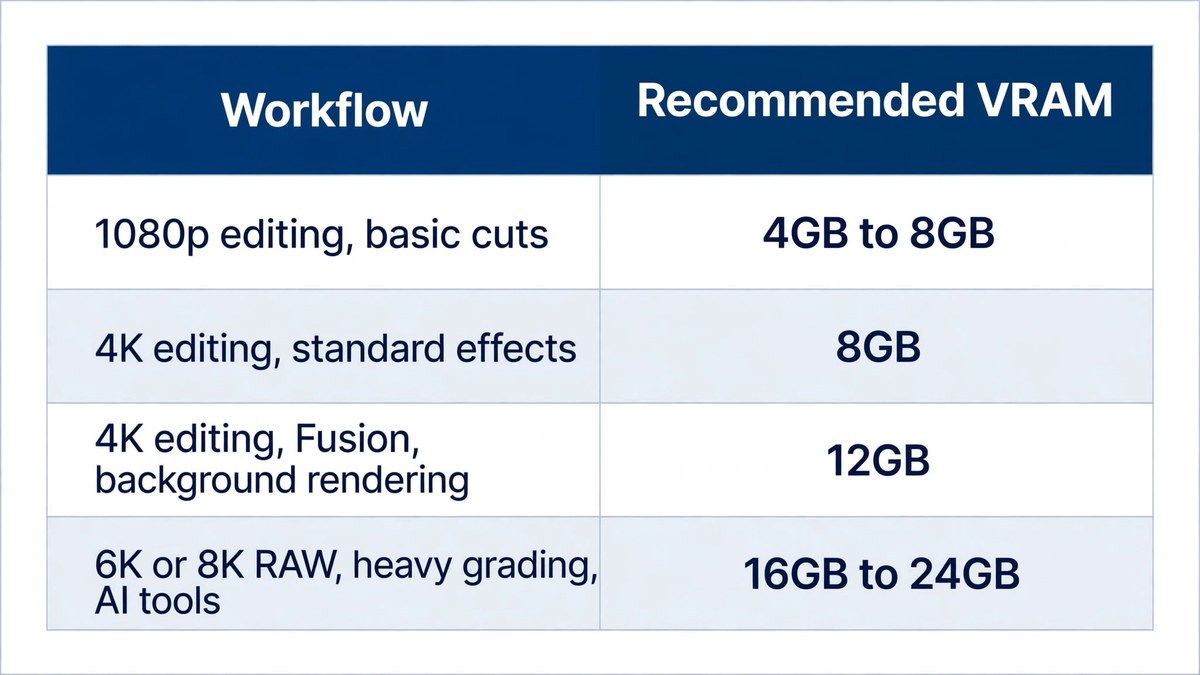
Editing is not one workload. A single 1080p talking-head video and a multi-camera 4K commercial stress the graphics card in completely different ways, so the right amount of VRAM depends on what is on your timeline. The table below gives the practical floor for each kind of project, based on the official requirements and the measured usage figures in this article.
| Workflow | Recommended VRAM | What pushes it higher |
|---|---|---|
| 1080p editing, basic cuts and titles | 4GB to 8GB | Almost nothing; even older cards cope |
| 4K editing, standard effects and grading | 8GB | Multiple video tracks and color nodes |
| 4K editing, Fusion, background rendering | 12GB | Composites, noise reduction, HDR grading |
| 6K or 8K RAW, heavy grading, AI tools | 16GB to 24GB | Large frames, long caches, AI models |
Notice how quickly the requirement climbs. Going from a basic 4K timeline to one with Fusion composites and background rendering adds 4GB, and moving to 8K footage can double the requirement again. That is because every step up in resolution multiplies the size of each frame the card must hold, and every effect you stack adds another layer of frames on top. If you are buying a card for editing, pick the tier that matches the heaviest project you expect to cut in the next two or three years, not the lightest one you cut today.
What Premiere Pro Officially Needs
Adobe publishes two tiers for Premiere Pro. The minimum is a GPU with 4GB of memory, which covers HD editing and simple timelines. The recommended spec for 4K work is a GPU with 8GB of memory, paired with 32GB of system RAM. That 8GB figure is Adobe’s own recommendation, not a guess, and it matches what most editors experience: 8GB handles 4K timelines with several effect layers and standard color grading comfortably, as long as you are not stacking the heaviest effects.
Premiere Pro is relatively forgiving because it leans on hardware decoding for modern camera codecs and lets you use proxies for heavy footage. A proxy is a small, easy-to-play copy of your footage that Premiere Pro swaps in while you edit, so the graphics card never has to hold full-resolution 4K frames. That is why many editors cut 4K projects happily on 8GB cards. The card starts to struggle when you skip proxies and pile on GPU-accelerated effects, Lumetri color grades, and warp stabilizer at the same time. Each of those asks the card to hold more frames in memory, and 8GB fills up faster than most people expect.
One workflow that reliably breaks 8GB is the Premiere Pro and After Effects roundtrip. A 4K timeline with a Dynamic Link to an After Effects composition containing AI-generated assets can push VRAM usage past 8GB during render queue preparation, even with 32GB of system RAM and a fast drive. The error message is usually “GPU memory exhausted,” and it appears even though the system itself has memory to spare. If your work regularly involves Dynamic Link, treat 12GB as your floor, not 8GB.
What DaVinci Resolve Officially Needs
DaVinci Resolve is stricter than Premiere Pro, because it does far more work on the GPU. Blackmagic Design lists a baseline minimum of a 4GB VRAM GPU for Resolve 21, but the numbers that matter are the ones for real work. For background rendering, Blackmagic recommends at least 12GB of VRAM alongside 32GB of system RAM. For the advanced AI tools, the requirement rises to at least 16GB of VRAM. And if you use the Fusion page for visual effects, you need 32GB of system RAM on Windows as well.
Resolve earns its reputation as a memory hog honestly. Its color page holds a cache of graded frames in VRAM so you can scrub the timeline smoothly, and that cache alone can use more than 7GB before you add a single node or plugin. A single 8K 10-bit frame occupies around 240MB, and Resolve’s real-time grading cache holds more than 30 frames for smooth scrubbing. Do the math and you are past 7GB of VRAM used before effects, noise reduction, or titles enter the picture.
Real-world testing backs this up. In professional editing setups, VRAM usage saturates above 7.2GB during ordinary editorial tasks, and a multi-camera 4K60 timeline with more than three noise reduction nodes, HDR grading, and two Fusion titles pushes peaks to 7.8GB or 8.1GB. At that point playback drops to 12 to 15 frames per second and cache generation starts failing. That is why 8GB is no longer a safe choice for serious Resolve work: the software’s own cache can nearly fill the card before your edit even begins.
| Requirement | Premiere Pro | DaVinci Resolve 21 |
|---|---|---|
| Minimum VRAM | 4GB | 4GB |
| Recommended VRAM for 4K | 8GB | 12GB for background rendering |
| System RAM for 4K | 32GB | 32GB, or 32GB with Fusion |
| AI tools | 8GB covers most AI features | 16GB for advanced AI tools |
The comparison makes the choice clear. Premiere Pro asks less of your graphics card because proxies and hardware decoding do much of the heavy lifting. Resolve asks more because the GPU is the heart of the program, and its cache, color tools, and Fusion page all live in VRAM. If you edit in both programs, buy for Resolve’s numbers, since they cover Premiere Pro’s as well. And remember that both programs share the same rule about AI tools: they are the hungriest feature in modern editing, and they behave like AI image generation workloads, wanting memory first and speed second.
Where Your VRAM Actually Goes While Editing
Understanding where the memory goes makes the numbers above feel less abstract. Four things fill your VRAM while you edit, and each one grows with resolution, effects, or both. First, the frames themselves: every frame on your timeline occupies memory, and a 4K frame is four times the size of a 1080p frame. Second, the playback cache: both editors hold recently played frames so scrubbing feels instant, and Resolve’s cache alone can exceed 7GB on a heavy grade. Third, effects and color nodes: each noise reduction node, blur, or Lumetri adjustment needs its own working space, and stacking three or more noise reduction nodes is one of the fastest ways to fill a card. Fourth, AI tools: noise reduction, upscaling, magic mask, and smart reframing load models into VRAM alongside your footage.
That is also why what VRAM is matters more for editors than for gamers. A game loads a level once and reuses it. An editor loads new frames constantly, holds several versions of each one for effects and caching, and keeps AI models resident at the same time. The workload is closer to running a local AI model than to playing a game, which is why the same card that games happily at 1440p can stutter on a 4K timeline. When VRAM runs out, the editor spills data to system RAM, playback turns choppy, and renders fail with out-of-memory errors instead of slowing down gracefully.
8GB vs 12GB vs 16GB vs 24GB: Which Card for Which Editor
With the numbers in hand, the buying decision becomes straightforward. An 8GB card, such as an RTX 5060 or RTX 5070 laptop GPU, is fine for 1080p editing and basic 4K work in Premiere Pro, especially with proxies. It is also the tier where you must accept limits: no heavy Fusion composites, no stacked noise reduction, and no large AI models. If that sounds like your work, 8GB will serve you, but it is a floor, not a comfortable place to sit.
A 12GB card, such as an RTX 5070 Ti, is the sweet spot for most editors in 2026. It meets Resolve’s background rendering threshold exactly, handles 4K timelines with effects and grading without constant cache pressure, and gives you room for a Fusion title or two. For anyone who edits 4K professionally or plans to keep the card for several years, 12GB is the minimum worth buying. A 16GB card, such as an RTX 5080, is the right choice if you rely on Resolve’s AI tools, cut 6K footage, or grade HDR projects regularly. And 24GB cards are for 8K RAW, large Fusion projects, and editors who run AI tools all day: they remove VRAM as a bottleneck entirely, at a price most hobbyists do not need to pay.
One more thing to check before you buy: memory bandwidth matters alongside capacity. The 8GB laptop GPUs share 448 GB/s of bandwidth, the 12GB tier steps up to 672 GB/s, and the 16GB tier reaches 896 GB/s. A card with more VRAM usually brings more bandwidth with it, which is part of why the bigger cards feel smoother on the timeline. If you are choosing between two cards with the same VRAM, the one with higher bandwidth will scrub and render faster.
How to Check and Reduce VRAM Use While Editing
Before you buy a new card, check whether your current one is actually the problem. Both editors show VRAM usage in their own meters, and Windows Task Manager shows dedicated GPU memory in the Performance tab. Open your heaviest project, play the timeline, and watch the number. If it sits near the top of your card’s capacity and playback stutters, you are VRAM-limited. If it stays low while playback still stutters, the bottleneck is somewhere else, such as the CPU, the drive, or the codec. Learning to monitor VRAM usage properly saves you from buying hardware you do not need.
If you are over the limit, four fixes help before you spend anything. First, use proxies: editing a lightweight copy of your footage is the single biggest VRAM saving available, and both Premiere Pro and Resolve build them automatically. Second, lower your playback resolution to half or quarter while cutting, and switch to full only for grading. Third, render noise reduction and heavy effects instead of playing them live, which frees the cache they occupy. Fourth, close the browser, Discord, and other GPU-using apps while you edit, because they hold VRAM your editor could use. If all four fixes still leave you at the limit, that is when a bigger card is genuinely the answer.
Conclusion
VRAM for 4K video editing starts at 8GB for basic Premiere Pro timelines, rises to 12GB for serious 4K work and Resolve’s background rendering, and reaches 16GB to 24GB for 6K and 8K footage, Fusion composites, and AI tools. The official requirements from Adobe and Blackmagic Design agree with measured real-world usage: 8GB saturates during ordinary professional editing, and the software’s own cache can fill most of the card before effects begin. Buy the tier that matches the heaviest project you will cut, use proxies and lower playback resolution to stretch what you have, and check your actual usage before you upgrade. The right amount of VRAM is the amount that lets you forget the hardware exists and focus on the edit.