Can You Run AI Models on CPU Without a Dedicated GPU?
Introduction
Running AI locally does not always require a dedicated graphics card. Many inference tools support CPU execution, and some quantized language models can run on ordinary desktop or laptop processors. The trade-off is usually speed, not a simple yes-or-no compatibility barrier. CPU inference can be useful for experimentation, privacy-sensitive tasks, learning, and workloads where waiting longer is acceptable. A GPU becomes more attractive when response time, throughput, image generation, or larger models matter.
Graphics memory is a finite working space, but the way an application uses it is shaped by its engine, data structures, runtime settings, and hardware. A useful guide must therefore explain both the general principle and the conditions that can change the outcome. The same GPU can behave differently after a software update, with a different model or game scene, or when another application is using the graphics processor.
This article focuses on practical understanding rather than a universal rule. It explains the terminology, identifies the variables worth checking, and provides a repeatable approach for evaluating a real system. Where a result depends on a specific application, that dependency should be made explicit instead of turning one observation into a claim about every workload.
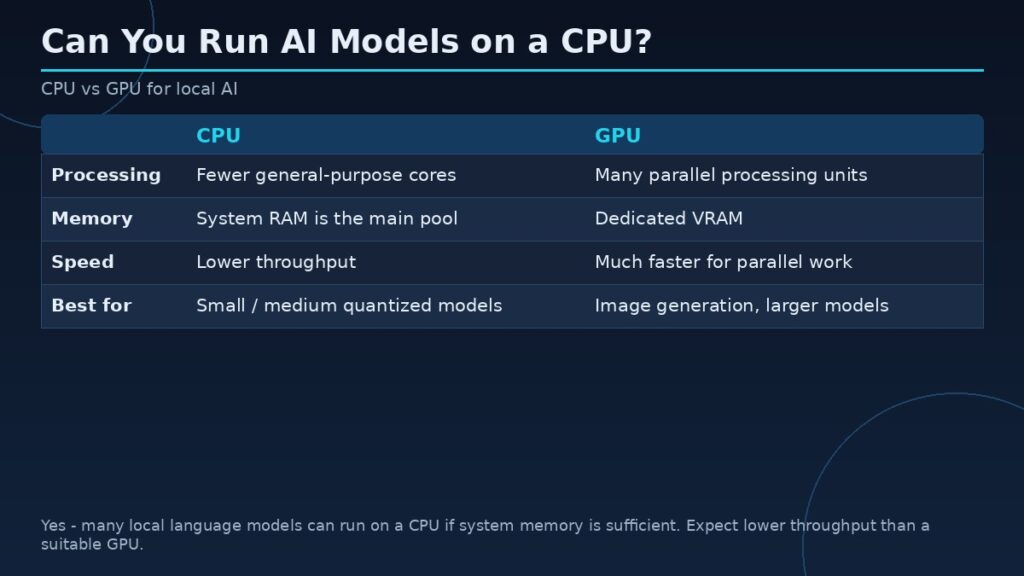
| Factor | CPU | GPU |
|---|---|---|
| Memory pool | System RAM is the primary pool | VRAM is the primary pool |
| Speed | Lower throughput than a suitable GPU | Greatly improves throughput for supported workloads |
| Best for | Experimentation, privacy-sensitive tasks, learning, and small or medium quantized models | Image generation, large models, and highly parallel workloads |
| Cost | No dedicated accelerator purchase, but electricity, hardware, and time still count | GPU purchase, power, and setup complexity |
Quick answer
Yes, many local language models can run on a CPU if system memory is sufficient and the inference software supports the processor. Expect lower throughput than a suitable GPU in many workloads.
Key concepts
Before changing hardware or settings, distinguish capacity from allocation and performance. Capacity is the physical amount of local graphics memory installed on the card. Allocation is the amount an application or driver has reserved or committed at a particular time. Active working-set demand is the data that must be available for the current workload to proceed efficiently. Monitoring tools can expose useful clues, but they may report different metrics and should not be treated as interchangeable.
Also distinguish memory capacity from bandwidth and compute throughput. Capacity determines how much data can reside locally. Bandwidth describes the rate at which data can move between memory and the GPU. Compute throughput describes how quickly the GPU can execute operations. A workload may be limited by any one of these factors, or by the CPU, storage, cooling, power limit, or software implementation.
How CPU inference works
A CPU inference engine performs the model’s mathematical operations using general-purpose processor cores and optimized vector instructions. Quantized model formats reduce memory requirements and can make local inference practical on systems with sufficient RAM. The model weights must still fit in available memory alongside the operating system, runtime, cache, and other processes.
System RAM matters
Without dedicated VRAM, system RAM becomes the primary memory pool for model weights and runtime data. A model file that is close to the installed RAM capacity may leave too little room for the operating system and context cache. Leave headroom and monitor actual use. Memory bandwidth also matters because inference repeatedly reads model weights during computation.
Processor features and memory bandwidth
CPU performance depends on core count, instruction-set support, cache, clock behavior, and memory bandwidth. Some inference libraries use vector instructions to accelerate quantized operations. Two processors with similar core counts can behave differently because of architecture and memory subsystem differences. Check the software’s supported instruction sets and published performance guidance.
What workloads are practical?
Small and medium quantized language models can be practical for testing, summarization, coding assistance, and offline experimentation, depending on the CPU and memory. Larger models may load slowly and generate tokens at a rate that feels inconvenient. Image-generation and other highly parallel workloads are often more compelling on a supported GPU, although CPU options may exist with substantial performance compromises.
CPU versus GPU trade-offs
A GPU has many parallel processing units and a memory subsystem designed for high-throughput workloads. A CPU has fewer general-purpose cores but is flexible and can access system RAM directly. GPU acceleration can greatly improve throughput when the model and software are optimized for it. However, setup complexity, GPU memory limits, power use, and software compatibility also influence the decision.
How to test CPU inference
Record the processor model, RAM capacity and speed, operating system, inference engine, model revision, quantization, context length, and thread settings. Measure model loading time, time to first token, tokens per second, and peak RAM use. Test a representative prompt rather than relying on a short demonstration. Monitor CPU temperature and sustained clock behavior during longer runs.
When to add a GPU
Consider a GPU when CPU throughput is insufficient, when you need image generation, or when your workflow benefits from parallel acceleration. Choose based on the supported software stack and model memory requirements. A modest GPU with insufficient VRAM may not solve every large-model problem, so estimate weights and cache before purchasing.
A step-by-step way to investigate
First, write down the exact system configuration. Include the graphics card, memory capacity, driver, operating system, CPU, system RAM, storage, and application version. Record the workload and its settings. In a game, include resolution, texture quality, ray tracing, upscaling, and the scene being tested. In an AI or workstation task, include the model or project, precision, batch size, context length, plugins, and offloading options.
Second, create a baseline using a repeatable task. Close unnecessary background applications, allow the workload to settle, and repeat the same action several times. Capture performance, memory allocation, system RAM use, GPU utilization, and any visible errors or quality changes. Do not rely on one short run. A background update or first-time shader compilation can distort a measurement.
Third, change one setting at a time. This is essential. If several options are changed simultaneously, the cause of an improvement or regression cannot be identified. Save the original settings, test the new configuration, and restore the baseline before testing another variable. When possible, use logs or frame-time captures instead of relying only on a screenshot.
Finally, report what the test does and does not prove. A single application version and one system configuration cannot establish a universal hardware requirement. Explain the test environment, disclose limitations, and distinguish measured results from estimates. This is especially important when publishing advice that readers may use to spend money or change a production workflow.
Common pitfalls
A common pitfall is assuming that a high allocation reading proves the card is out of memory. Software may reserve resources for caching, and different tools may expose dedicated usage, shared usage, committed memory, or budget information. Another pitfall is assuming that more VRAM automatically makes a GPU faster. Additional capacity can prevent a capacity-related problem, but it does not increase the number of shader cores or guarantee higher bandwidth.
A third pitfall is ignoring software changes. Drivers, game patches, AI frameworks, model formats, and operating-system updates can change memory behavior. Record versions and dates, and retest important claims after substantial updates. Avoid undocumented registry edits or utilities that promise to manufacture additional dedicated VRAM; software cannot change the physical memory installed on a discrete graphics card.
Frequently asked questions
Can ChatGPT-style models run without a GPU?
Many open-weight language models can run locally on a CPU using compatible inference software, although performance varies.
How much RAM do I need?
It depends on model size, quantization, context length, and runtime overhead. Check the exact model and leave memory for the operating system.
Is CPU inference free?
There may be no dedicated accelerator purchase, but electricity, hardware cost, and time still have value.
Will more CPU cores always make inference faster?
No. Memory bandwidth, instruction support, cache, and software scaling also affect performance.
Can a CPU generate AI images?
Some tools support CPU execution, but it can be much slower than a suitable GPU and may have other limitations.
Conclusion
CPU inference is a valid entry point for local AI. Start with a quantized model that fits comfortably in system RAM, then consider a GPU when throughput or workload complexity justifies it.
The most dependable approach is to define the workload, measure it under controlled conditions, and interpret memory readings alongside performance and system behavior. Use manufacturer documentation for specifications, application documentation for supported settings, and repeatable tests for performance claims. That produces advice that is both more accurate and more useful than a one-number rule.