
Can You Increase Dedicated VRAM on a Windows PC?
Introduction
Many PC users look for a Windows setting that can increase dedicated video memory. The answer depends on the type of graphics hardware. A discrete graphics card has physical VRAM chips installed on the card, so a Windows setting cannot add more capacity. Integrated graphics usually shares system memory, and some systems expose a firmware setting that controls a reserved allocation. That setting changes how system RAM is assigned; it does not create new physical memory.
A graphics memory problem should be diagnosed from evidence rather than guessed from one monitoring number. The operating system, driver, application, and monitoring utility may describe memory in different ways. Some tools show dedicated allocation, some show a process's usage, and others expose a budget or shared-memory value. Those figures can be useful, but they do not all mean that the GPU has run out of physical memory.
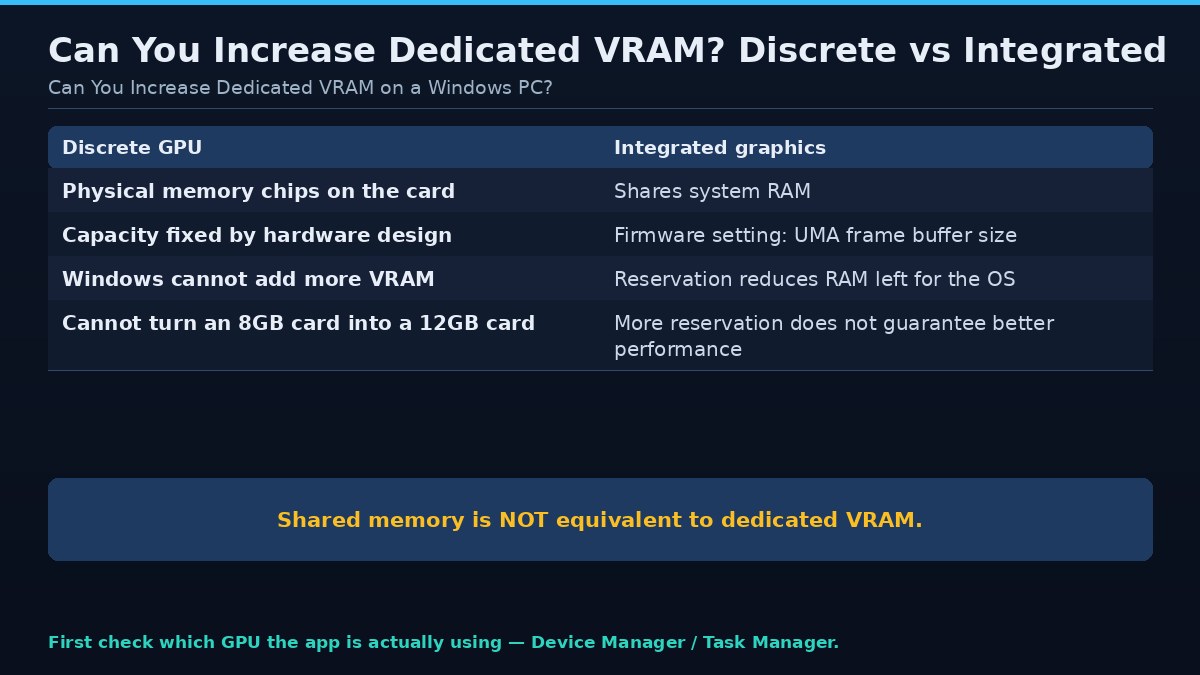
| Memory type | Can Windows increase it? | What the article says |
|---|---|---|
| Discrete GPU dedicated VRAM | No | A software setting cannot turn an 8GB card into a 12GB card |
| Integrated graphics reservation | Only the firmware reservation | The memory still comes from system RAM; it is not added GPU hardware |
| Shared GPU memory | No — not equivalent | Shared system RAM has different performance characteristics from dedicated VRAM |
Quick answer
Windows cannot increase the physical VRAM on a discrete GPU. Some integrated graphics systems allow a firmware reservation to be adjusted, but the memory still comes from system RAM and performance depends on the platform.
Understand the symptom before changing settings
Write down what happens, when it happens, and whether it can be reproduced. Does the problem occur at startup, when loading a level, after several minutes, when opening a large project, or only at a particular setting? Does the application close, display an error, freeze, or continue with reduced performance? The timing often narrows the possible causes.
Record the exact GPU, driver, application version, operating system, system RAM, and workload settings. If the problem began after an update, note that date and version. Keep a copy of any error message. Avoid changing several driver and registry settings at once, because doing so makes it difficult to identify the cause and may create a second problem.
Discrete GPU memory
A discrete graphics card contains its own memory chips connected to the GPU. The installed capacity is determined by the card's hardware design. A software setting cannot turn a 8GB card into a 12GB card. The driver and operating system can manage resources and shared memory, but that is not the same as adding dedicated physical VRAM.
Integrated graphics memory
Integrated GPUs commonly use system RAM rather than separate graphics memory chips. Some firmware interfaces provide a pre-allocated memory setting, sometimes called UMA frame buffer size or a similar label. The option and available values depend on the motherboard, processor, and firmware. Increasing the reservation reduces the amount immediately available to the operating system, so it is not automatically beneficial.
Dedicated, shared, and reserved memory
Dedicated memory on a discrete card is physically local to the GPU. Shared GPU memory is system RAM that can be used by GPU workloads under operating-system management. A firmware reservation for integrated graphics is another concept: it may set aside a portion of system RAM for graphics use. These figures should not be added together as if they were identical pools.
How to check your GPU type
Use Windows Device Manager, Task Manager, or the system information utility to identify the graphics adapter. Check the exact processor or GPU model on the manufacturer's official specification page. A laptop may have both integrated and discrete graphics, and applications may use different adapters depending on power settings. Confirm which GPU the application is actually using.
Should you change firmware allocation?
Only consider it when the system uses integrated graphics and the manufacturer documents the option. More reserved memory may help a particular compatibility requirement, but it does not guarantee better performance. Modern systems can allocate shared memory dynamically. Follow the motherboard or laptop manufacturer's instructions and avoid changing unrelated firmware settings.
Better alternatives to increasing VRAM
For a discrete GPU, reduce memory-heavy settings, close applications using the GPU, choose a workload that fits the card, or upgrade to a model with more physical memory. For integrated graphics, adding supported dual-channel system RAM can sometimes improve bandwidth and capacity availability, but compatibility and platform limits matter. Check official specifications before buying memory.
Beware of fake VRAM tools
Utilities and videos that promise to increase dedicated VRAM through registry edits often confuse a reported value with physical capacity. A changed label does not add memory chips or bandwidth. Avoid unknown downloads and unsupported registry changes. Use official firmware controls only when the hardware manufacturer documents them.
Safe troubleshooting sequence
Begin with reversible application-level changes. Save work, close unnecessary GPU-accelerated applications, and restart the affected program. Check whether an official update addresses the issue. If you change a graphics option, record the original value and test one option at a time. If the application offers a lower-memory mode, smaller texture setting, reduced batch size, or project optimization option, use the documented control rather than an unofficial patch.
Next, inspect system conditions. Check GPU temperature, power behavior, system memory pressure, storage availability, and background processes. A system can appear to have a VRAM problem when the actual cause is a driver reset, overheating, unstable overclock, insufficient system RAM, or a damaged application cache. Restore factory GPU clocks if the card is overclocked and test stability before making further changes.
If the problem persists, collect logs and reproduce it with the smallest possible workload. Compare a new project or clean game profile with the original one. If the clean workload works, the issue may relate to a particular asset, configuration, plugin, or save. If all workloads fail, investigate the driver, operating system, and hardware more broadly. Use official support channels for driver cleanup or firmware procedures.
What not to do
Do not download unknown executables advertised as VRAM expanders, memory cleaners, or guaranteed stutter fixes. Software cannot increase the physical dedicated memory installed on a discrete GPU. Avoid registry edits copied without a clear explanation, disabling security services, or flashing unofficial firmware. These steps can destabilize a system and make diagnosis harder.
Do not assume that a higher memory allocation is itself a fault. Some applications reserve memory for caching. Do not publish a benchmark claim from a single run or infer a hardware defect from one crash. Verify the issue, preserve logs, and distinguish observed facts from possible explanations.
Frequently asked questions
Can I increase VRAM on an NVIDIA graphics card?
You cannot add physical VRAM through Windows. The capacity is fixed by the graphics card hardware.
Can BIOS increase integrated graphics memory?
Some systems allow a reserved memory setting, but availability varies and the memory comes from system RAM.
Does shared memory make my GPU equivalent to a larger VRAM card?
No. Shared system RAM has different performance characteristics and is not equivalent to dedicated graphics memory.
Will adding RAM increase dedicated VRAM?
It does not increase discrete GPU VRAM. It may help integrated graphics systems that use system memory, depending on platform configuration.
Are registry VRAM hacks safe?
They generally cannot add physical capacity and may change only reported values. Avoid unsupported edits.
Conclusion
Identify whether the PC uses integrated or discrete graphics first. Do not trust tools that claim to add physical VRAM through a Windows tweak.
A methodical approach is safer and more effective than applying a collection of unrelated tweaks. Identify the symptom, capture the configuration, change one variable at a time, and confirm that the result is repeatable. If the issue appears to be hardware-related or involves repeated driver resets, use manufacturer diagnostics or qualified repair support rather than risking the system with undocumented fixes.