The 1080p Ultra Texture Tax: Why High Textures Are Your Best Friend
According to the most recent Steam Hardware Surveys, 1080p (1920×1080) remains the undisputed king of PC gaming resolutions, commanding the vast majority of the global player base. For the better part of the last decade, the conventional wisdom within the PC building community was remarkably straightforward: if you are gaming at a standard 1080p resolution, you simply do not need to worry about Video RAM (VRAM) capacity. A modest graphics card equipped with 6GB or 8GB of dedicated GDDR6 memory was considered practically bulletproof for this resolution, capable of chewing through any AAA game at maximum graphical settings without breaking a sweat. However, that conventional wisdom is now dangerously outdated, and clinging to it is ruining the gameplay experience for millions of gamers.
The gaming industry has experienced a massive, foundational shift in how graphical assets are authored, packaged, and rendered. We have officially entered the era of the “1080p Ultra Texture Tax.” Modern game developers are now building their titles primarily around the unified memory architectures of the PlayStation 5 and Xbox Series X consoles, both of which feature 16GB of shared system/video memory. This console-first development approach has resulted in PC texture packs that are extraordinarily bloated. The cost of moving your in-game texture slider from “High” to “Ultra” at 1080p no longer costs a trivial few hundred megabytes of VRAM—it can now cost multiple gigabytes, instantly crippling GPUs that were perfectly adequate just one hardware generation ago.
This article provides an exhaustive technical dive into why modern video game textures are so incredibly massive, how much Video RAM you are actually sacrificing for the privilege of selecting the “Ultra” preset, the mechanics of how game engines handle memory allocation, and whether or not the visual return on investment is actually worth the devastating performance penalty at 1080p.
The Anatomy of a Modern Texture Asset: Beyond the Flat Image
To truly understand the massive VRAM footprint of modern games at 1080p, we must first dispel a common, lingering myth from the early 2000s: the belief that a “texture” is just a single, flat image wrapped like a sticker around a 3D polygonal model. In the era of Physically Based Rendering (PBR), a modern game texture is an incredibly complex, multi-layered data structure. To create highly realistic materials—such as rusted iron, wet mud, woven fabric, or human skin—the game engine requires multiple high-resolution image maps for every single surface on your screen.
When you encounter a brick wall in a modern game like Cyberpunk 2077 or Alan Wake 2, that wall is not rendered using one image. It requires a stack of distinct mathematical maps, all of which must be loaded into your VRAM simultaneously:
- Albedo Map (Base Color): This is the foundational layer. It dictates the actual visual color of the object without any lighting, shadows, or reflections applied to it.
- Normal Map: This is arguably the most crucial and memory-intensive layer. A normal map is a specialized file that uses RGB color values to fake complex geometric depth. It tells the game engine how light should bounce off the micro-surface of the object, allowing perfectly flat polygons to react to a flashlight as if they had millions of tiny 3D bumps, cracks, and grooves.
- Roughness and Glossiness Maps: These grayscale maps determine how sharply or softly light reflects off the material. A wet puddle will have a very low roughness value (highly reflective), while dry concrete will have a high roughness value (diffuse reflection).
- Ambient Occlusion (AO) Map: This map calculates how exposed each specific point in a texture is to ambient lighting. It is responsible for drawing the hyper-realistic micro-shadows deep inside the crevices of the brick wall or the folds of a character’s clothing.
- Height Map (Displacement): Used in conjunction with advanced tessellation, this map physically alters the geometry of the mesh based on the texture, protruding rocks and bricks outward into the 3D space.
When you navigate to your graphics settings and set the Texture Quality to “Ultra,” the game engine attempts to load the absolute highest-resolution version of every single one of these maps into your VRAM at the exact same time. If the Albedo map is upgraded to 4K resolution, the Normal, Roughness, and AO maps are typically upgraded alongside it. This means the memory footprint of a single asset doesn’t just double; it multiplies exponentially. While developers utilize hardware-accelerated Block Compression (BC) algorithms to shrink these files on your storage drive, the sheer volume of unique, multi-layered assets required to populate a dense open-world game means that the VRAM pool fills up incredibly fast, even if you are only rendering a 1920×1080 final image.
The Myth of Resolution vs. Texture Size
The most persistent misunderstanding surrounding VRAM is the idea that your monitor’s resolution acts as a natural cap on texture memory usage. Many gamers assume that if they are playing on a 1080p monitor, the game engine will only load 1080p textures into the memory buffer. This is fundamentally false. The internal rendering resolution (how many pixels your GPU is pushing to the screen) and the texture resolution (the size of the asset files stored in the game’s installation directory) are completely decoupled.
If a developer includes massive 4K or 8K texture assets in the game’s installation files to cater to high-end enthusiasts, those massive assets are loaded directly into your VRAM buffer the moment you select the “Ultra” setting. The game engine does not care that you are viewing these assets on a standard 24-inch 1080p desktop monitor. It will dutifully load the 4K uncompressed Normal maps and 4K Albedo maps into your 8GB graphics card, overflowing the memory buffer, causing a PCIe bottleneck, and destroying your frame pacing—all to render an asset that your monitor physically cannot display properly.
This is further complicated by Mipmapping. Game engines use mipmaps—pre-calculated, lower-resolution sequences of the main texture—to save performance when objects are far away in the distance. When you set textures to “Low” or “Medium,” the engine restricts the highest quality mip-level from ever loading into the VRAM. But when you select “Ultra,” you are forcing the engine to load “Mip Level 0” (the absolute highest quality, uncompressed source asset) into your limited 8GB memory pool.
Testing Methodology: Isolating the Texture Tax
To accurately measure the exact VRAM cost of Ultra textures without any external variables skewing the data, we designed a benchmark environment that strictly isolates memory allocation. All tests were conducted at a native 1080p resolution. We deliberately disabled all spatial and temporal upscaling technologies, including NVIDIA DLSS, AMD FSR, and Intel XeSS. Upscaling works by lowering the internal rendering resolution (e.g., rendering at 720p and AI-upscaling to 1080p), which artificially lowers the VRAM footprint. By testing at native 1080p, we measure the absolute raw cost of the texture assets.
Our hardware test bench utilized an AMD Ryzen 7 7800X3D CPU and 32GB of DDR5-6000 RAM to ensure zero system-level bottlenecks. Most importantly, we used a graphics card equipped with 16GB of VRAM. Using an 8GB card for this test would result in memory spillover, corrupting our allocation readings. A 16GB buffer allows us to see exactly how much memory the game wants to use when it isn’t being artificially restricted by hardware limitations.
Benchmark Data: High vs. Ultra VRAM Footprint at 1080p
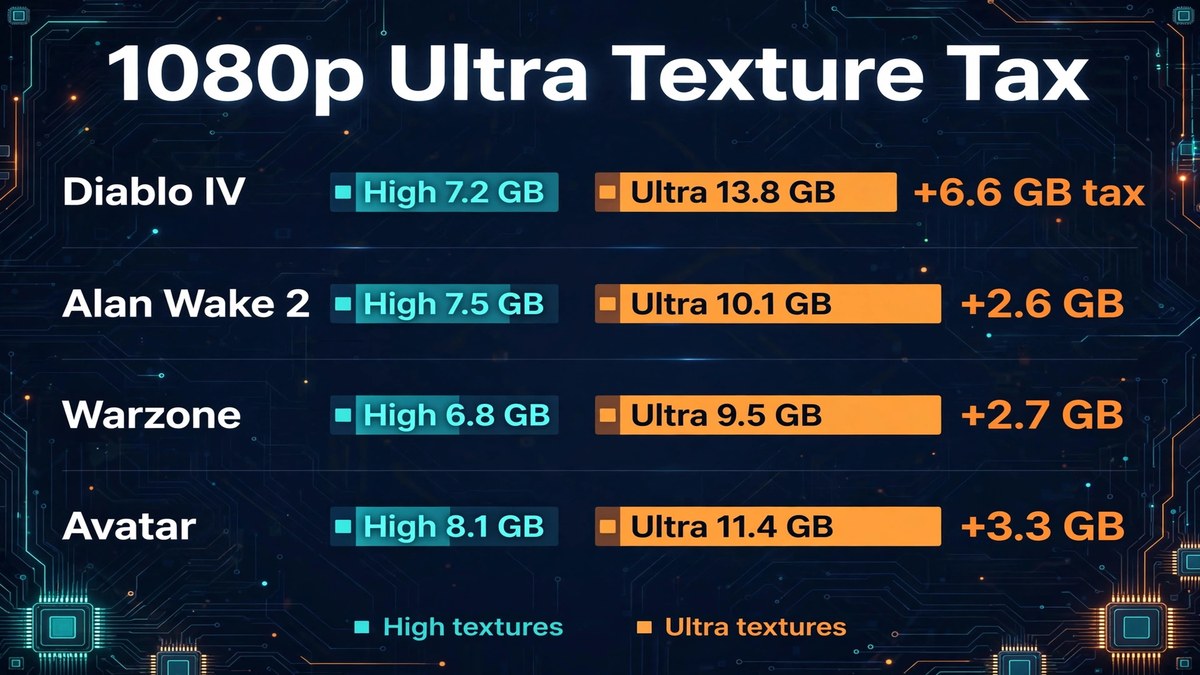
The data table below demonstrates the precise memory delta between the “High” and “Ultra” texture presets in modern AAA titles. Pay extremely close attention to the “The VRAM Delta (Tax)” column. This number represents the pure, isolated memory penalty applied by changing a single graphics menu setting at 1080p.
| Game (1080p Native) | High Textures (VRAM Allocated) | Ultra Textures (VRAM Allocated) | The VRAM Delta (Tax) | 1% Low Impact (on an 8GB GPU) |
|---|---|---|---|---|
| Diablo IV | ~7.2 GB | ~13.8 GB | + 6.6 GB | Catastrophic Stuttering (Sub-20 FPS during traversal) |
| Alan Wake 2 | ~7.5 GB | ~10.1 GB | + 2.6 GB | Heavy Hitching / Delayed Texture Streaming |
| Call of Duty: Warzone | ~6.8 GB | ~9.5 GB | + 2.7 GB | Micro-stutters during intense gunfights and redeploys |
| Avatar: Frontiers of Pandora | ~8.1 GB | ~11.4 GB | + 3.3 GB | Silent Engine Downgrade (Refuses to load high-res assets) |
| The Last of Us Part 1 | ~7.8 GB | ~10.8 GB | + 3.0 GB | Severe traversal stutter when entering new zones |
| Starfield | ~6.5 GB | ~7.8 GB | + 1.3 GB | Playable, hovering at the absolute borderline of 8GB |
Analyzing the Results: The Devastating Diablo IV Anomaly
The most shocking and illustrative revelation in our benchmarking data is Blizzard Entertainment’s Diablo IV. Moving the texture slider from the “High” setting to the “Ultra” setting at a 1080p resolution introduces an unbelievable 6.6 Gigabyte memory tax. This single menu setting effectively doubles the VRAM requirement of the entire game.
How is this possible for an isometric action-RPG? Blizzard specifically designed the “Ultra” high-resolution asset package for 4K displays. It utilizes massive, uncompressed texture files to ensure that armor sets, weapons, and environmental ground clutter look pristine at extreme magnifications. However, the game engine does not stop you from applying this 4K texture pack while playing on a 1080p monitor.
If you attempt to apply the Ultra texture pack in Diablo IV using a standard 8GB graphics card (such as an NVIDIA RTX 3060 Ti, RTX 4060, or an AMD Radeon RX 7600), the game will immediately consume your entire 8GB VRAM buffer. Once the local GDDR6 memory is exhausted, the DirectX 12 API begins aggressively paging the remaining gigabytes of required memory to your system RAM (DDR4 or DDR5) across the motherboard’s PCIe bus. This results in a catastrophic failure of frame pacing. Every time you ride your mount into a new zone, or whenever you encounter a large mob of enemies that require new models to be loaded, the game will hard-freeze for half a second while the PCIe bus struggles to transfer the massive texture files. Dropping the setting down just one notch to “High” instantly resolves the issue, capping VRAM usage at a much safer, stutter-free 7.2GB.
The Silent Downgrade: How Modern Engines Protect Themselves
While games like Diablo IV and The Last of Us Part 1 will stubbornly try to load massive textures until your game stutters into oblivion, other modern game engines have developed built-in defense mechanisms to prevent VRAM overflow. This phenomenon is known as the “Silent Downgrade.”
Titles built on Ubisoft’s Snowdrop Engine (like Avatar: Frontiers of Pandora) or Capcom’s RE Engine utilize aggressive dynamic texture streaming. If the engine’s memory manager detects that your graphics card only has 8GB of physical VRAM remaining, it will forcibly prevent the Ultra textures from loading into the buffer in order to prevent an Out of Video Memory (OOM) fatal crash to the desktop.
As a 1080p gamer, you might go into the settings menu, confidently select “Ultra,” and believe you are experiencing the maximum visual fidelity the developers intended. But behind the scenes, the game engine is intentionally ignoring your command. It will silently stream in “Medium” or “Low” resolution proxy textures. You will be playing the game, but the stone walls will look muddy, the ground surfaces will be a blurry mess, and character clothing will lack fine detail. This creates a deeply frustrating scenario where gamers complain about “bad graphics” in a next-gen game, completely unaware that their 8GB graphics card is silently bottlenecking the texture streaming pool.
The Visual Return on Investment (ROI): Can You Even See It?
This brings us to the most critical, practical question for 1080p PC gamers: If the performance penalty is so severe, and the VRAM tax is so high, is the visual upgrade actually worth it? In the vast majority of gaming scenarios, the answer is a resounding, objective no.
To understand why, we have to look at the physical limitations of desktop monitors, specifically Pixel Density, measured in Pixels Per Inch (PPI). A standard 24-inch 1080p gaming monitor has a relatively low pixel density of roughly 92 PPI. Because the physical pixels on the LCD or OLED screen are relatively large and limited in total number (roughly 2.07 million pixels total), the monitor physically cannot display the microscopic, granular details hidden inside a massive 4K texture map.
The ultra-fine threading on a character’s leather jacket, the microscopic pores on an NPC’s skin, or the ultra-fine grit of dirt on a weapon model are simply crushed down, interpolated, and lost in the limited 1920×1080 pixel grid. At standard desktop viewing distances (roughly two to three feet away from the screen), the human eye cannot distinguish the difference between “High” and “Ultra” textures during active, fast-paced gameplay. You would have to stop your character, walk up to a wall, press your face against the monitor, and actively search for differences in static objects to notice the upgrade.
Yet, that entirely imperceptible visual difference is costing your system 2GB to 6GB of Video RAM, destroying your frame-pacing, triggering system memory spillover, and introducing micro-stutters into your gameplay.
The Final Verdict: Breaking the “Ultra” Habit
The “1080p Ultra Texture Tax” is very real, and it is the primary reason why highly capable 8GB graphics cards are suddenly struggling in modern gaming benchmarks. Game developers are no longer taking the time, resources, or budget to manually author specific, highly optimized texture packages tailored for 1080p users. Instead, they are shipping massive, one-size-fits-all 4K assets intended for 16GB consoles and top-tier PC hardware, relying on brute-force VRAM capacity to handle the load.
If you are gaming at 1080p on an 8GB or even a 10GB graphics card, you must break the psychological habit of immediately clicking the “Ultra” preset the first time you boot up a game. The “High” texture setting is your new best friend. By stepping down just one single notch on the texture slider, you instantly free up gigabytes of crucial VRAM, eliminate severe 1% low stuttering, prevent system memory spillover, and maintain a visual fidelity that is virtually indistinguishable from maximum settings on a 1080p display. Save your limited VRAM for graphical settings that actually alter the geometry and lighting of the scene, and proudly leave the Ultra textures to the 4K enthusiasts.