What is System Memory Spillover? Benchmarking the VRAM Bottleneck
When you push your graphics card beyond its absolute physical limits by maxing out high-resolution in-game textures, turning on hardware-accelerated ray tracing, or dialing up your monitor’s resolution to 4K, you might assume that running out of Video RAM (VRAM) will cause the game to immediately crash to the desktop. While “Out of Video Memory” (OOM) fatal errors do occasionally happen, modern operating systems and graphics APIs like DirectX 12 and Vulkan are specifically engineered to prevent hard crashes whenever possible. Instead of crashing, your system engages a sophisticated, yet performance-destroying failsafe mechanism known as System Memory Spillover.
To the average PC gamer, system memory spillover doesn’t look like an error message; it looks and feels like catastrophic stuttering, heavy input lag, a complete collapse of 1% low frame rates, and sudden audio desyncs during cutscenes. Your average frame rate monitor (like the basic Steam FPS counter) might claim you are getting a perfectly smooth 60 frames per second, but the game itself feels like a disjointed slideshow. This specific phenomenon is currently the single biggest point of frustration for PC builders who purchased 8GB graphics cards in recent years, only to find them choking on modern Unreal Engine 5 releases.
In this exhaustive technical deep dive, we are going to break down the physical memory architecture of a modern gaming PC, benchmark exactly what happens when your dedicated VRAM buffer hits 100% capacity, track the journey of a graphical asset as it is violently shuttled across your motherboard’s PCIe lanes, and explain why your ultra-fast DDR5 system RAM is hopelessly inadequate for the demands of rendering modern video games.
The Memory Hierarchy: Why Physical Location is Everything
To truly understand the devastating performance penalty of memory spillover, we have to look at the architectural hierarchy of memory inside a modern computer. A Graphics Processing Unit (GPU) is essentially a massive, highly parallel number-crunching factory. However, it cannot process geometry or shade pixels if it does not have the raw data immediately on hand. It relies on a strictly tiered system to fetch this data, prioritizing proximity and bandwidth above all else.
When your GPU core needs to render a frame, it searches for the necessary data (textures, shaders, shadow maps) in the following specific order:
- L1 / L2 / L3 GPU Cache: This is an extremely small pool of memory (often just a few megabytes, up to 96MB in modern AMD Infinity Cache designs) located directly on the physical silicon die of the GPU itself. Because it is physically touching the processing cores, its latency is practically zero, and its bandwidth is measured in multiple Terabytes per second (TB/s). It is the fastest memory in your entire computer.
- Dedicated VRAM (GDDR6 / GDDR6X / GDDR7): These are the memory modules soldered directly onto your graphics card’s printed circuit board (PCB) surrounding the GPU chip. They communicate over a massive ultra-wide memory bus (such as 128-bit, 192-bit, or 256-bit). Dedicated VRAM boasts bandwidths ranging from 400 GB/s on budget cards to over 1,000 GB/s on flagship models.
- System Memory (DDR4 / DDR5 RAM): These are the memory sticks slotted into your motherboard, which are shared by your Central Processing Unit (CPU) and your Windows operating system. System RAM operates at a fraction of the bandwidth of GDDR6, typically ranging between 50 GB/s to 80 GB/s.
- Storage (NVMe SSD / SATA SSD / HDD): This is where the game files permanently reside. Even the absolute fastest PCIe Gen 5 NVMe drives peak around 12 to 14 GB/s, making them glacial compared to VRAM.
Game developers optimize their engines with the strict intention that all active, in-use textures, shadow maps, and geometry will live exclusively in Step 2: your Dedicated VRAM. Because the VRAM is physically located millimeters away from the GPU processor, data transfers occur almost instantaneously, allowing the GPU to seamlessly push out 60 to 144 frames every single second without ever waiting for a delivery.
The Mechanics of a Cache Miss and The PCIe Bottleneck
What exactly happens when a game’s memory footprint exceeds your hardware? Let’s say you load up a highly detailed title that requires 11 Gigabytes of memory footprint to hold its Ultra textures and Ray Tracing Bounding Volume Hierarchies (BVH). If your graphics card only has 8 Gigabytes of VRAM soldered to the board, the graphics API is forced to make a drastic compromise. It fills up your 8GB of ultra-fast GDDR6 memory to the absolute brim, and then it “spills” the remaining 3 Gigabytes of necessary graphical data over into your motherboard’s standard System RAM.
This is the exact moment the nightmare begins. When the GPU needs to render a texture that got pushed to the system memory (a scenario known as a cache miss), it cannot access it directly. The request must undergo a brutal, multi-step journey:
- The GPU core sends a data request out through the graphics card’s PCIe connector.
- The request travels physically down the motherboard’s PCIe lanes to the CPU.
- The CPU’s internal Memory Controller receives the request and searches the DDR4 or DDR5 system RAM for the specific texture file.
- Once found, the system RAM sends the multi-megabyte texture file back through the memory controller.
- The file is shoved back down the PCIe lanes, up through the graphics card connector, and finally into the GPU core for rendering.
Not only is your system RAM incredibly slow compared to GDDR6 (roughly 10 to 15 times slower in total bandwidth), but the PCIe bus itself acts as a massive bottleneck. While this journey takes place in a fraction of a second, in the world of real-time graphics rendering, a fraction of a second is an eternity. The GPU core sits completely idle, doing absolutely zero work, while waiting for this data round-trip to complete. This idle waiting period halts the rendering pipeline entirely, delaying the delivery of the next frame to your monitor. That sudden delay in frame delivery is what your human eye perceives as a violent stutter, a hitch, or a freeze in the gameplay.
Benchmarking Spillover: The Reality of Frame Time Latency
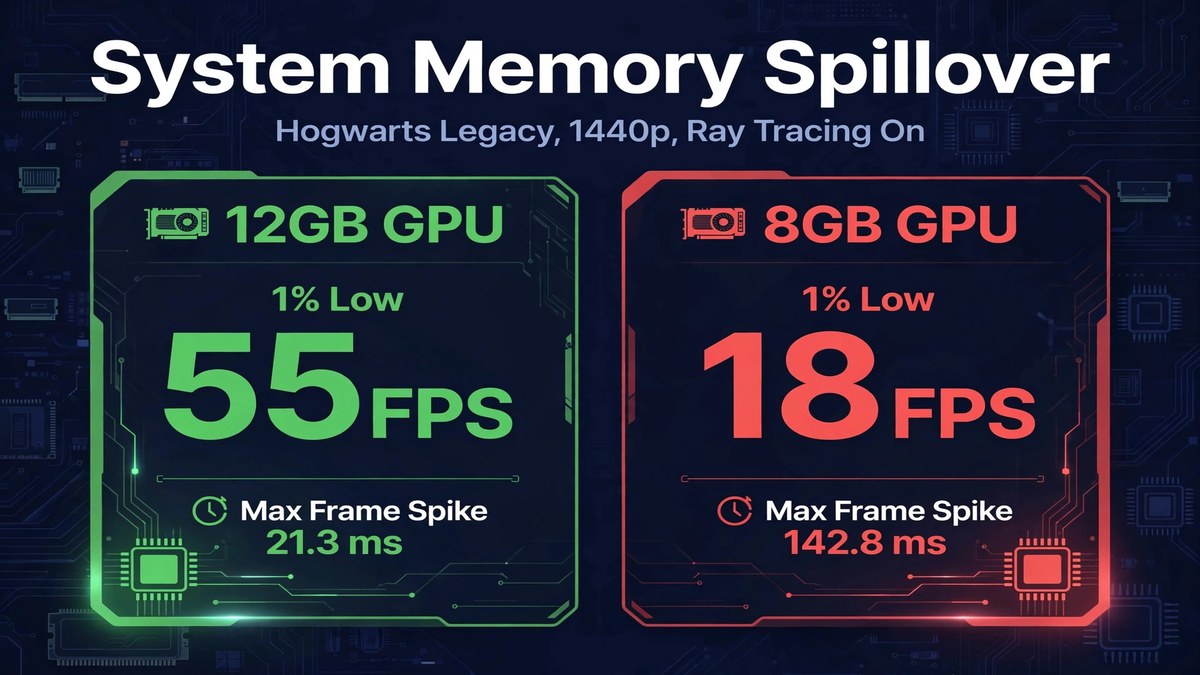
To visualize the severe penalty of memory spillover, we must look past the deception of “Average FPS.” We designed a benchmark using Hogwarts Legacy at a 1440p Native resolution with Ray Tracing enabled. This configuration forces a VRAM footprint of approximately 11.5 GB. We ran the exact same 60-second traversal sequence on two GPUs with highly comparable core compute performance but different memory capacities: an 8GB variant and a 12GB variant.
Instead of just monitoring standard frame rates, we actively monitored Frame Time Latency in milliseconds (ms) using RivaTuner Statistics Server (RTSS). Frame time is the exact amount of time it takes your GPU to render one single, individual frame. To achieve a perfectly smooth 60 FPS experience, a new frame must be generated and delivered exactly every 16.6 milliseconds. If a frame takes significantly longer than 16.6ms to render, your eye immediately perceives a stutter.
| Metric Tracked (Hogwarts Legacy, 1440p RT On) | 12GB GPU (All Data in VRAM) | 8GB GPU (Heavy Spillover) |
|---|---|---|
| Average FPS | 68 FPS | 60 FPS (Deceptively acceptable) |
| 1% Low FPS | 55 FPS (Smooth & Consistent) | 18 FPS (Severe Stuttering) |
| 0.1% Low FPS | 48 FPS | 7 FPS (Hard Hitching) |
| Average Frame Time | 14.7 ms | 16.6 ms |
| Max Frame Time Spike (The Stutter) | 21.3 ms (Barely noticeable) | 142.8 ms (Massive screen freeze) |
| System RAM Allocation (Shared) | ~800 MB (Standard Windows background tasks) | ~3,800 MB (The Spillover Penalty) |
Analyzing the Frame Time Disaster
The data in the table above clearly illustrates the absolute deception of relying on “Average FPS” to judge a graphics card’s performance. The 8GB card averaged 60 frames per second across the test run, which on a YouTube benchmark graph might suggest a perfectly playable experience. However, the maximum frame time spike reveals the horrifying reality of the gameplay.
While most frames rendered somewhat normally while standing still, whenever the player panned the camera quickly to reveal a new section of the castle, the GPU was forced to suddenly pull gigabytes of new textures across the PCIe bus from the system RAM. This resulted in a massive 142.8 millisecond frame time spike. For nearly one-and-a-half tenths of a second, the screen completely froze. In a fast-paced competitive shooter, a 140ms freeze guarantees you will lose the gunfight. In a single-player RPG, it shatters immersion and causes immediate eye fatigue and motion sickness. By contrast, the 12GB card had enough local memory to hold all necessary textures on the physical graphics board, resulting in a perfectly smooth worst-case frame time of just 21.3 milliseconds.
The Bandwidth Delusion: Can DDR5 Save You?
A highly common theory among PC builders is that upgrading to the latest, ultra-fast DDR5 system memory will negate the stuttering caused by a low-VRAM graphics card. The logic dictates that if the spillover memory is faster, the stutter should disappear. To test this hypothesis, we forced a spillover scenario on a test bench utilizing standard DDR4-3200 memory, and then repeated the exact same test using high-end, extremely expensive DDR5-7200 memory with tightly tuned CAS latencies.
The results decisively proved that while DDR5 offers a measurable improvement, it absolutely does not solve the fundamental problem. Moving to DDR5-7200 reduced the severity of the frame time spikes by approximately 15% to 20%. The 1% low frame rates improved slightly, but the game still felt noticeably choppy and disjointed.
The core issue is not just the sequential bandwidth of the system RAM; it is the physical latency inherent in the distance the data must travel, the processing overhead of the CPU’s memory controller, and the structural limitations of the PCIe bus interface. GDDR6 is specialized memory designed to send massive, wide blocks of visual data simultaneously. Standard DDR memory is designed for low-latency, generalized CPU tasks. No amount of system RAM speed can fully compensate for a lack of dedicated GDDR6 located directly next to the GPU die.
The PCIe Gen 4.0 x8 Controversy: Doubling the Penalty
The system memory spillover problem has become particularly controversial with recent budget and mid-range graphics card releases, specifically the NVIDIA RTX 4060, the RTX 4060 Ti 8GB, and the AMD Radeon RX 7600. Historically, graphics cards connected to the motherboard using a full x16 PCIe interface (meaning they utilized 16 individual hardware lanes of data traffic).
However, to cut silicon manufacturing costs and simplify PCB layouts, both AMD and NVIDIA have begun wiring their lower-tier graphics cards with only an x8 PCIe interface. This means the graphics card only has half the physical connection pins active.
When an x8 graphics card runs out of VRAM, the spillover penalty is effectively doubled compared to an older x16 card. The GPU is forced to push gigabytes of data back and forth to the system RAM through a pipe that is literally half the size of previous generations. If you install an x8 GPU onto an older PCIe Gen 3.0 motherboard (a highly common scenario for budget PC builders upgrading older rigs), the bandwidth of those 8 lanes is halved once again. This turns a minor spillover scenario into a catastrophic, unplayable mess, as the GPU is starved of data through a severely restricted PCIe bottleneck. This hardware design choice is exactly why having adequate VRAM capacity is significantly more critical on modern budget cards than it ever was in the past.
How to Mitigate and Prevent System Memory Spillover
If you are currently gaming on a GPU with 8GB or less of dedicated VRAM, you must become proactive about managing your memory pool to ensure a smooth frame pacing experience. The goal is to keep your “Dedicated Memory Allocated” below your hardware’s physical maximum to prevent the DirectX API from relying on your system RAM as a crutch.
- Lower the Texture Resolution First: Textures are the single largest consumers of VRAM. Dropping from “Ultra” to “High” or “Medium” is the fastest, most effective way to eliminate spillover stuttering, often saving 2GB to 4GB immediately with very little visual loss at 1080p.
- Disable Hardware Ray Tracing: The BVH data structures required for Ray Tracing are massive memory hogs. Unless you have 12GB of VRAM or more, enabling Ray Tracing at 1440p is usually a fast track to severe spillover and frame pacing failure.
- Reduce Shadow Map Quality: High-resolution cascaded shadow maps consume a significant chunk of memory. Stepping shadows down one tier can free up 500MB to 1GB of dedicated space without ruining the game’s atmosphere.
- Monitor Background Hardware Acceleration: Applications like Google Chrome, Discord, Spotify, and OBS Studio utilize hardware acceleration, meaning they permanently reserve portions of your VRAM just by being open. Close these apps while playing heavy AAA titles, or go into their respective settings menus and disable hardware acceleration to return that VRAM to your game.
Ultimately, system memory spillover is a software failsafe, not a gameplay feature. It is designed to keep your game from instantly crashing to the desktop and throwing an error code, but it is not intended to provide a fluid, playable experience. The only permanent, foolproof fix for severe spillover stuttering is upgrading your hardware to a graphics card with an adequate VRAM buffer tailored for your specific monitor’s target resolution.