
VRAM Requirements for Local LLMs: The Ultimate Hardware Sizing Guide
The artificial intelligence landscape has undergone a radical transformation over the past twelve months. While massive, cloud-based models like OpenAI’s ChatGPT and Anthropic’s Claude continue to dominate the mainstream media, a quieter, much more decentralized revolution is taking place on the desktops of PC enthusiasts around the world. Running Large Language Models (LLMs) locally on your own personal hardware using open-source software like Ollama, LM Studio, or Text-Generation-WebUI provides unparalleled data privacy, complete freedom from corporate censorship, and an escape from expensive monthly API subscription fees.
However, running an AI model locally is an entirely different workload compared to traditional PC gaming or video rendering. In PC gaming, your frame rate is primarily dictated by the compute speed of your GPU’s cores. If your graphics card is a bit slow, the game still runs, just at a lower frame rate. Local AI inference does not behave this way. Local AI is a strictly memory-bound workload. It is entirely gated by a single, unforgiving hardware specification: Video RAM (VRAM) Capacity.
If a language model’s file size exceeds your graphics card’s physical VRAM capacity by even a single megabyte, you cannot run it at full speed. Period. In this exhaustive technical guide, we will break down the complex mathematics of neural network parameter weights, explain the absolute necessity of quantization, dissect the hidden memory tax of the Context Window, and provide exact VRAM sizing requirements for running modern 7B, 14B, and 32B models on your home computer.
The Mathematics of Memory: Parameters and Precision
To understand why Large Language Models are so incredibly memory-hungry, we first need to define what an LLM actually is on a hardware level. When you download a model like Meta’s Llama 3 8B or Mistral 7B, you are essentially downloading a massive, multi-gigabyte database of mathematical “weights” and “biases.” These weights represent the connections between artificial neurons inside the neural network. The number in the model’s name (e.g., the “8B” in Llama 3 8B) stands for 8 Billion parameters.
By default, when researchers train these models in multi-million-dollar data centers using arrays of NVIDIA H100 enterprise GPUs, the parameters are stored in a data format known as 16-bit floating-point precision (FP16 or BF16). To calculate the absolute baseline VRAM requirement for a raw, uncompressed language model, the math is incredibly straightforward: you simply multiply the parameter count by 2 bytes (since 16 bits equals 2 bytes).
- A 7B Model (7 Billion Parameters): 7,000,000,000 x 2 bytes = ~14 Gigabytes of VRAM.
- A 14B Model (14 Billion Parameters): 14,000,000,000 x 2 bytes = ~28 Gigabytes of VRAM.
- A 70B Model (70 Billion Parameters): 70,000,000,000 x 2 bytes = ~140 Gigabytes of VRAM.
Looking at these raw numbers, the hardware crisis becomes immediately apparent. The vast majority of standard consumer gaming graphics cards on the market today, such as the RTX 4060 or RX 7600, are equipped with a mere 8GB of VRAM. Even flagship, ultra-enthusiast cards like the $1,600 NVIDIA RTX 4090 max out at 24GB of VRAM. Therefore, attempting to run a raw, FP16 uncompressed model locally on standard consumer desktop hardware is physically impossible for all but the absolute smallest of experimental models.
The Magic of Quantization: Shrinking the Unshrinkable
Because nobody has 140GB of VRAM sitting in their home office, the open-source AI community had to invent a workaround to democratize access to these models. That workaround is a highly complex mathematical compression technique known as Quantization.
Quantization works by intentionally reducing the mathematical precision of the neural network’s weights. Instead of storing every single parameter as a highly precise 16-bit decimal number, quantization rounds those numbers down to fit into smaller data containers, such as 8-bit integers (INT8), 4-bit integers (INT4), or in extreme cases, even 2-bit formats.
This process sounds like it should completely lobotomize the AI, making it stupid and incapable of reasoning. Astonishingly, it does not. Through advanced quantization algorithms developed by the community (most notably GGUF, AWQ, and EXL2), we have discovered that you can compress a language model down to 4-bit precision and it will retain approximately 95% to 98% of its original intelligence, reasoning capabilities, and linguistic fluency. The loss in “perplexity” (the metric used to measure an AI’s confusion) is practically imperceptible in casual conversation or coding tasks, but the VRAM savings are absolutely monumental.
When you quantize an FP16 model down to 4-bit precision, you are effectively dividing the physical file size—and therefore the VRAM requirement—by four.
Tier 1: Sizing the 7B to 8B Parameter Models (The Entry Level)
The 7-billion to 8-billion parameter tier is the undisputed sweet spot for local AI enthusiasts. This tier includes incredibly powerful, state-of-the-art models like Meta’s Llama 3 (8B), Mistral AI’s Mistral v0.2 (7B), and Google’s Gemma (7B). These models are highly capable of acting as creative writing assistants, summarizing long PDF documents, generating Python and HTML code, and engaging in deep roleplay scenarios.
Because they are relatively compact, they are the perfect target for standard gaming PCs.
- Raw FP16 Size: ~14GB to ~16GB of VRAM.
- 8-bit Quantized Size (Q8_0): ~7.5GB to ~8.5GB of VRAM.
- 4-bit Quantized Size (Q4_K_M): ~4.5GB to ~5.0GB of VRAM.
Hardware Recommendation: If you own a standard 8GB graphics card (like an RTX 3060 Ti, RTX 4060, or RX 6600 XT), you can comfortably load a 4-bit quantized 7B or 8B model entirely into your VRAM. You will experience blazing fast inference speeds, often generating text at a staggering 50 to 80 tokens per second (words per second)—which is significantly faster than you can physically read. However, if you attempt to run the 8-bit quantized version, you will likely hit the absolute limit of your 8GB VRAM buffer once you factor in Windows operating system overhead, leading to a massive slowdown.
Tier 2: Sizing the 14B to 32B Parameter Models (The Prosumer Sweet Spot)
If you require highly advanced logical reasoning, complex multilingual translation, or deep architectural coding assistance, the 7B models will occasionally hallucinate or lose the plot. Stepping up to the 14B to 32B tier provides a massive leap in intelligence. This tier includes heavyweight models like Alibaba’s Qwen 1.5 (14B to 32B), Cohere’s Command R (35B), and the incredibly popular Mixtral 8x7B.
Mixtral 8x7B introduces a unique architecture called Mixture of Experts (MoE). It is essentially eight separate 7B models stitched together. While it only uses two “experts” to process any single word, the catch for local hardware is that all eight experts must be loaded into the VRAM simultaneously. Therefore, a Mixtral 8x7B model actually behaves like a 47-billion parameter model when it comes to memory allocation.
- 14B Model at 4-bit Quantization: Requires ~9.5GB to ~11GB of VRAM.
- 32B Model at 4-bit Quantization: Requires ~19GB to ~21GB of VRAM.
- Mixtral 8x7B at 4-bit Quantization: Requires ~24GB to ~26GB of VRAM.
Hardware Recommendation: To run a 14B model smoothly without offloading, a 12GB graphics card (such as the incredibly popular and budget-friendly RTX 3060 12GB) is the absolute minimum requirement, though a 16GB card (like the RTX 4070 Ti Super or RX 7800 XT) provides a much safer buffer. To run a 32B model or Mixtral, you are firmly in ultra-enthusiast territory. You will explicitly require an NVIDIA RTX 3090 24GB or RTX 4090 24GB. For this specific reason, the used market for RTX 3090s has exploded, as local AI researchers buy them in bulk purely for their massive 24GB memory buffers.
The Context Window: The Silent VRAM Killer
Calculating the VRAM footprint of the model parameters is only the first half of the equation. The second, and often most overlooked, half of the equation is the Context Window, also known as the KV Cache (Key-Value Cache).
The context window represents the AI’s short-term memory during your specific conversation. Every single word in your prompt, every word in the PDF document you asked it to summarize, and every word the AI generates in its response must be converted into “tokens” and held actively in the VRAM. The KV Cache grows dynamically as the conversation gets longer.
In older models from 2023, the context window was usually hard-capped at 4,096 tokens (roughly 3,000 words). At a 4k context size, the KV Cache only consumes roughly 500MB of VRAM, which is easy to ignore. However, modern models like Llama 3 feature massive 8,192 token contexts, and models like Command R support staggering 128,000 token contexts (allowing you to paste an entire 300-page novel into the prompt).
The VRAM cost of the KV Cache scales linearly with the context size and the number of parameters. If you load a 4-bit Llama 3 8B model (which takes ~5GB of VRAM) and then force the context window up to 32,000 tokens to analyze a massive block of Python code, the KV Cache alone will consume an additional 3GB to 4GB of VRAM. If you only have an 8GB graphics card, expanding the context window will silently push you over your hardware limit, instantly crippling your performance.
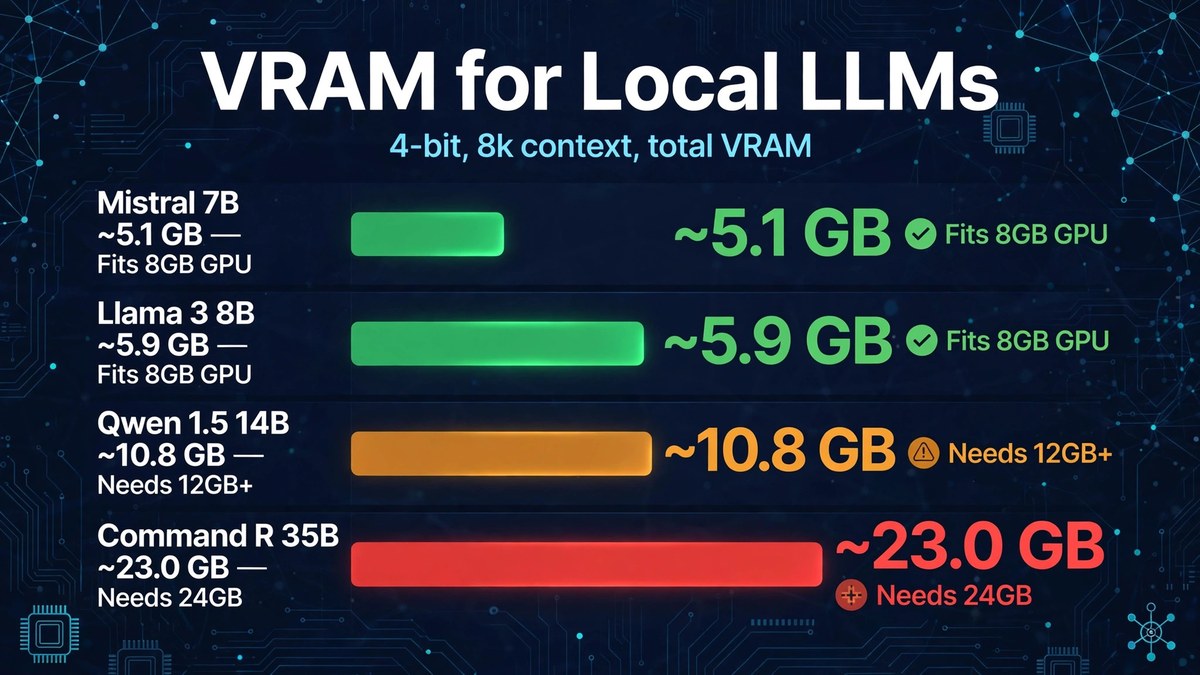
| Model (4-bit Quantized) | Base VRAM (Parameters Only) | 8k Context Window Cost | Total Required VRAM (Minimum) |
|---|---|---|---|
| Mistral 7B | ~4.3 GB | + 0.8 GB | ~5.1 GB (Fits on 8GB GPU) |
| Llama 3 8B | ~4.9 GB | + 1.0 GB | ~5.9 GB (Fits on 8GB GPU) |
| Qwen 1.5 14B | ~9.2 GB | + 1.6 GB | ~10.8 GB (Requires 12GB+ GPU) |
| Command R 35B | ~19.8 GB | + 3.2 GB | ~23.0 GB (Requires 24GB GPU) |
What Happens When You Run Out of VRAM? (CPU Offloading)
When PC gamers run out of VRAM, their games stutter violently. When local AI users run out of VRAM, they must rely on a technique called Layer Offloading.
Advanced formats like GGUF (specifically designed for software like Ollama and LM Studio) are incredibly resilient. If you attempt to load a 14B model that requires 10GB of VRAM onto an 8GB graphics card, the software will not crash. Instead, it will fill your 8GB of VRAM with the primary neural network layers, and then it will seamlessly “offload” the remaining layers into your computer’s standard DDR4 or DDR5 System RAM, utilizing your Central Processing Unit (CPU) to calculate those specific layers.
While this sounds like a brilliant failsafe, the performance penalty is absolute devastation. Dedicated GPU VRAM operates at bandwidths of 400 GB/s to over 1,000 GB/s. Standard system RAM operates at a mere 60 GB/s. Furthermore, CPUs lack the massive parallel processing cores required for efficient matrix multiplication.
If a 7B model fits entirely inside your GPU’s VRAM, it will generate text at a blazing 60 to 80 tokens per second. If even 10% of that model spills over into your System RAM, the entire generation process must halt at every single word to wait for the slow CPU and DDR RAM to finish their calculations. Your speed will instantly plummet to 3 to 5 tokens per second. You will literally watch the AI type out its response letter by letter, like a person slowly hunting and pecking on a keyboard.
The Apple Silicon Anomaly: Why Macs Rule the AI Space
It is impossible to discuss VRAM requirements for local AI without mentioning the massive disruption caused by Apple Silicon (the M1, M2, M3, and M4 series chips). While traditional Windows PCs suffer from a hard physical divide between fast VRAM on the graphics card and slow System RAM on the motherboard, Apple Silicon utilizes a Unified Memory Architecture (UMA).
On an Apple Mac Studio or MacBook Pro, the CPU and the highly capable integrated GPU share the exact same pool of ultra-fast memory. If you purchase a Mac Studio with 128GB or 192GB of Unified Memory, the local AI software can treat almost all of that memory as if it were dedicated VRAM. This allows Apple users to easily load massive 70B, 104B, and even 120B parameter models (which would require multiple $1,600 NVIDIA RTX 4090s in a Windows PC) onto a single, silent, low-power desktop machine. While the raw token generation speed of an Apple M-series chip cannot beat a dedicated NVIDIA GPU, the sheer capacity advantage makes Apple hardware the current holy grail for enthusiasts running the largest, smartest open-source models.
Final Thoughts: Planning Your AI Hardware
Entering the world of local Large Language Models requires a complete recalibration of how you view computer hardware. Core counts and clock speeds take a back seat to the sheer, brute-force necessity of physical memory capacity.
If you are building or upgrading a PC specifically to run Ollama or LM Studio, you must prioritize VRAM above all else. Avoid 8GB graphics cards entirely if your budget allows. The NVIDIA RTX 3060 12GB remains the undisputed champion of budget AI hardware, offering 12GB of VRAM for under $300. For mid-range builders, the 16GB tier (RTX 4070 Ti Super or RTX 4080) opens the door to fully accelerated 14B models. And for those who refuse to compromise, the 24GB RTX 3090 and 4090 remain the ultimate keys to unlocking the true power of open-source artificial intelligence on your local desktop.