12GB vs 16GB VRAM: Gaming Performance Across Different Resolutions
Introduction
Choosing between 12GB and 16GB VRAM is not as simple as choosing the larger number. Both capacities can support demanding games, but the best option depends on resolution, texture settings, the graphics processor, and the kinds of applications you use. Resolution changes the size of some rendering resources, while textures and other assets contribute their own memory demands. The GPU core and memory bandwidth still determine how quickly the card can process the workload.
This guide is designed to answer the practical question behind the headline, explain the technical principles involved, and give readers a repeatable way to evaluate their own hardware. Graphics memory is often discussed as if it were a single performance number, but real workloads are more complicated. The amount of memory installed, the amount currently allocated, the amount actively needed, the speed of the memory subsystem, and the work performed by the GPU core are related but distinct factors.
A useful analysis starts by identifying the workload. A game, an AI model, a 3D scene, and a video-editing timeline can use the same graphics card in very different ways. Each application creates its own resource footprint and responds differently when memory becomes constrained. The same capacity can be comfortable in one task and limiting in another. For that reason, this article avoids universal claims and explains which variables should be checked before making a decision.
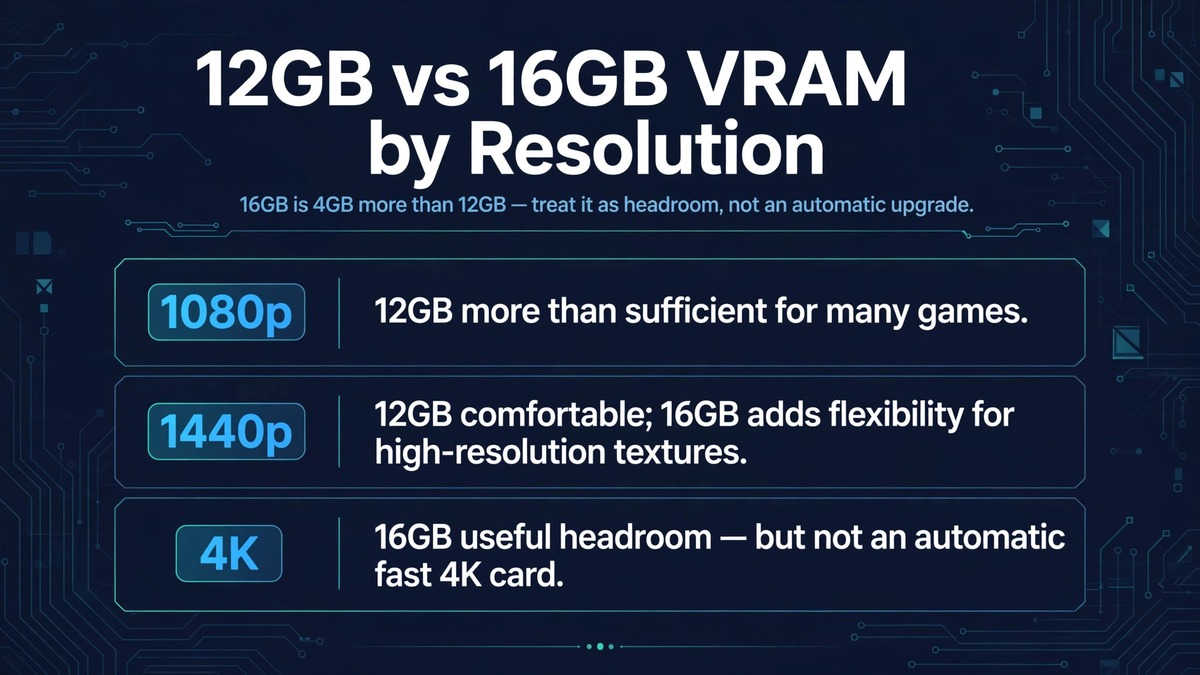
| Resolution | 12GB | 16GB |
|---|---|---|
| 1080p | More than sufficient for numerous workloads | Useful for large modifications, creator applications, or unusually memory-heavy titles |
| 1440p | Substantial room for many games | Additional flexibility for high-resolution textures and demanding effects |
| 4K | Choose when workloads fit comfortably and the card offers better performance or value | Useful headroom for demanding 4K games, but not automatically fast enough to render 4K at high frame rates |
Quick answer
Treat 16GB as additional headroom, not an automatic performance upgrade. Compare complete GPU models using the resolution and applications you actually use.
The central rule is to measure the workload you actually run, not to assume that a specification or monitoring number tells the whole story. Where possible, compare equivalent settings, record repeatable measurements, and separate capacity limits from compute, bandwidth, CPU, storage, and software limitations.
Capacity is not a frame-rate rating
Twelve gigabytes and sixteen gigabytes describe how much local graphics memory is installed, not how quickly the GPU renders a frame. If a game keeps its working set comfortably below 12GB, a 16GB card may show little difference when the GPUs otherwise have comparable performance. Extra capacity becomes valuable when the smaller card must evict resources, reduce quality, or rely on less suitable memory pathways. Always distinguish memory headroom from compute throughput.
1080p workloads
At 1080p, many games use smaller render targets than they do at higher resolutions, although texture assets may remain the same size when texture quality is unchanged. A 12GB card can be more than sufficient for numerous 1080p workloads. A 16GB model may still be useful for large modifications, creator applications, or unusually memory-heavy titles, but it should not be assumed to improve frame rates simply because it has four additional gigabytes.
1440p workloads
At 1440p, pixel-related resources and the GPU’s rendering workload increase compared with 1080p. The practical effect on memory depends on the engine and settings. Twelve gigabytes can provide substantial room for many games, while 16GB offers additional flexibility for high-resolution textures and demanding effects. If a title has a memory issue, test texture quality and other resource-heavy settings individually rather than assuming resolution alone explains the result.
4K workloads
Four-kilopixel gaming raises the cost of rendering and can increase the size of render targets. It also places much greater demands on GPU processing power and memory bandwidth. Sixteen gigabytes may provide useful headroom for demanding 4K games, but a card with 16GB is not automatically fast enough to render 4K at high frame rates. The GPU architecture, core configuration, bandwidth, upscaling support, and target quality remain decisive.
How to compare real cards
A fair comparison uses the same game build, driver branch, CPU, system memory, storage, scene, and graphics options. If the 12GB and 16GB cards use different GPU chips, report the full product names and do not attribute every difference to capacity. Record average FPS, a defined low-percentile metric, frame-time traces, memory allocation, and visible image-quality behavior. Repeat the test and document whether upscaling or frame generation is active.
Buying decision
Choose 12GB when the card offers better overall performance or value and your workloads fit comfortably. Consider 16GB when the price difference is reasonable and you use high-resolution assets, 4K workloads, large creative projects, or local AI tools. A balanced evaluation includes power draw, cooling, dimensions, software support, and the expected ownership period.
A practical evaluation workflow
Start by documenting the exact hardware and software configuration. Record the GPU model, installed memory capacity, driver version, operating system, application version, CPU, system memory, and storage device. In a laptop or compact system, also note power mode and thermal conditions because those can change sustained performance. For a game, write down resolution, texture quality, ray tracing, upscaling, frame generation, and the exact scene or benchmark route. For an AI workflow, record model name, quantization, context length, batch size, framework, and whether layers are offloaded to CPU.
Next, establish a baseline. Close unnecessary applications, allow the workload to reach a steady state, and repeat the same task several times. Record average performance as well as low-percentile behavior or completion time. Capture memory allocation and system RAM use, but do not interpret either number alone. If the application exposes logs, save them. A screenshot is useful for documenting settings, while a CSV or frame-time trace is better for later comparison.
Change one variable at a time. If you change resolution, texture quality, batch size, model quantization, and driver version together, it becomes impossible to know which change produced the result. A controlled test can reveal whether a setting affects memory capacity, compute load, bandwidth, or simply image quality. Repeat the test after each change and note any visual or functional differences.
Finally, report the limitations. State whether the result came from a built-in benchmark, a repeatable manual route, a synthetic test, or a single real project. Explain whether the test was repeated and whether the measurement tool reports allocated, reserved, or actively used memory. Honest methodology makes an article more useful than a confident headline supported by an unexplained number.
Common mistakes and misleading conclusions
One common mistake is treating memory allocation as proof of memory exhaustion. Applications may reserve unused capacity for caching, and monitoring utilities do not all report the same metric. Another mistake is assuming that more capacity automatically increases performance. Extra memory helps when the workload needs it; it does not make shader cores faster or increase the speed of a narrow memory bus.
A third mistake is comparing different graphics cards as though memory capacity were the only difference. GPU architecture, core count, memory bandwidth, power limits, cooling, and driver maturity can all affect results. If two products differ in several ways, describe the comparison as a product-level test rather than a controlled memory-capacity experiment.
It is also easy to overlook software versions. Game patches can change asset streaming, shader compilation, and graphics settings. AI frameworks can change memory allocation strategies between releases. A result should therefore include a date and version information, and older findings should be retested before being presented as current advice.
Frequently asked questions
Is 12GB enough for 1440p?
It can be enough for many 1440p games. Demanding titles, high-resolution texture packs, and specific effects can change the requirement, so check tests for the exact game and settings.
Is 16GB necessary for 4K?
Not universally. It can provide useful headroom, but GPU processing performance and bandwidth are also critical at 4K.
Will 16GB always beat 12GB?
No. If the workload fits in 12GB, a faster 12GB GPU can outperform a slower 16GB model.
Does resolution directly double VRAM use?
No. Some buffers scale with pixel count, but textures, streaming, compression, and engine behavior make total memory use non-linear.
Is extra VRAM useful outside gaming?
Yes. It can help with large 3D scenes, GPU-accelerated creative work, and local AI models, depending on software requirements.
Conclusion
Treat 16GB as additional headroom, not an automatic performance upgrade. Compare complete GPU models using the resolution and applications you actually use.
The most reliable decision comes from matching the hardware to a clearly defined workload and validating it with repeatable evidence. Use specifications to narrow the options, use measurements to understand actual behavior, and explain the limits of every comparison. That approach helps readers make a better decision without confusing a single memory figure with total graphics performance.