Does Lowering Texture Quality Improve FPS? A Technical Explanation
Introduction
Lowering texture quality is one of the first suggestions players hear when a graphics card has limited VRAM. It can reduce the amount of texture data a game needs to keep available, but it does not guarantee a higher frame rate. If the GPU is limited by shader performance, CPU work, memory bandwidth, or another part of the pipeline, reducing textures may have little effect. The setting is most useful when texture resources are contributing to a genuine memory constraint.
Graphics memory is one part of a broader system. Its behavior depends on the application, driver, operating system, data format, and the hardware that moves information between memory and processing units. A number displayed by a monitoring utility can be useful, but it should always be interpreted in context. A reliable explanation separates what is known from what is only a possible cause.
| Bottleneck | Effect of lowering texture quality |
|---|---|
| VRAM / memory pressure | Can improve smoothness or prevent memory-related problems; may improve low-percentile performance more than average FPS |
| Shader performance limit | Little or no FPS improvement |
| CPU work limit | Little or no FPS improvement |
| Memory bandwidth limit | Little or no FPS improvement |
Quick answer
Lowering texture quality can improve smoothness or prevent memory-related problems when the game is constrained by VRAM. It may produce little or no FPS improvement when the bottleneck is elsewhere.
Important background
The GPU works with resources such as textures, geometry data, render targets, intermediate buffers, model weights, and application-specific data. These resources have different lifetimes and access patterns. Some remain resident for a long time, while others are created for a particular frame or operation. Applications may reserve memory to reduce future loading delays, and drivers manage a memory budget according to system conditions.
Capacity, bandwidth, and compute throughput are not interchangeable. Capacity is how much local data can be stored. Bandwidth is how quickly data can move. Compute throughput is how quickly operations can be processed. A workload can be constrained by one or several of these factors, and a change that helps one bottleneck may not help another.
What texture quality changes
Texture quality usually selects the detail level of surface assets. High-resolution textures contain more texel information and can require more storage than lower-resolution versions. Games may use mipmaps, compression, streaming, and asset residency systems to manage those resources. The actual memory change depends on the title and the assets visible in a scene.
Why FPS may improve
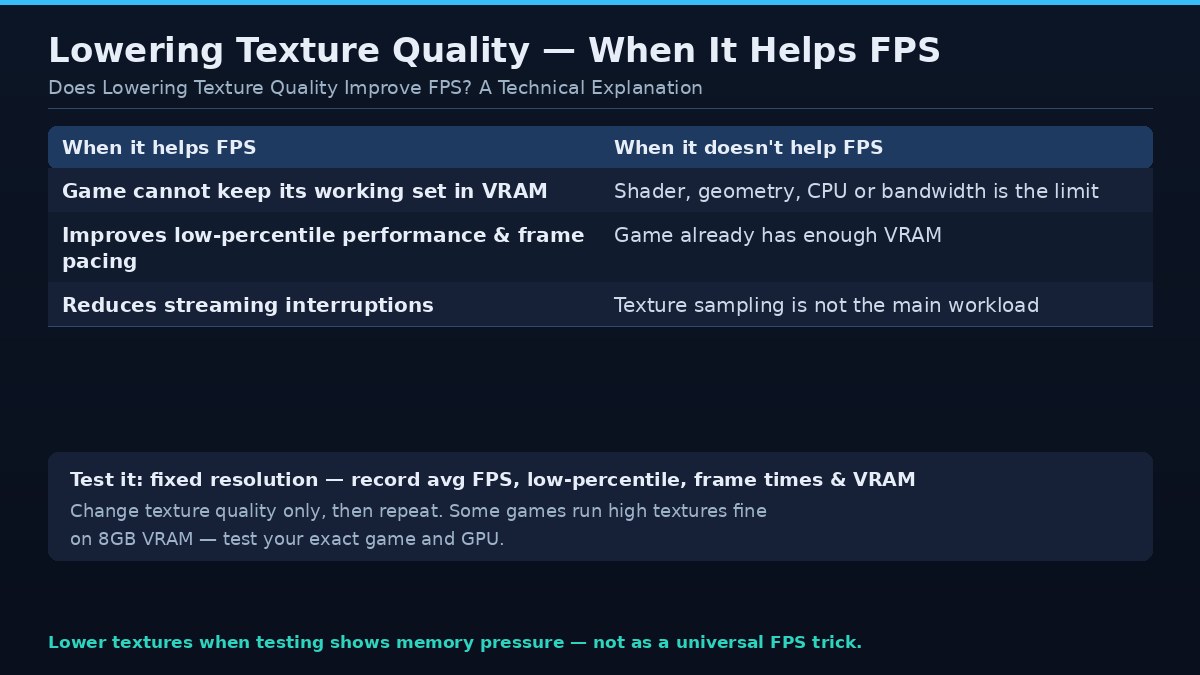
If the game cannot keep its preferred working set in local VRAM, it may need to stream or move resources more often. Reducing texture quality can lower the working-set demand and may reduce interruptions. In some cases, this improves low-percentile performance or frame pacing more noticeably than average FPS.
Why FPS may not change
Texture sampling does not always dominate the rendering workload. If shader execution, geometry processing, CPU submission, or memory bandwidth is the limiting factor, lowering texture resolution may not reduce the time needed to render a frame. The game may also have enough VRAM already, leaving no capacity problem to solve.
Visual quality trade-offs
Texture quality affects surface detail, not necessarily the overall geometry or lighting of the scene. The difference may be obvious on close objects, character clothing, signs, and environmental surfaces. At normal viewing distance, some lower-resolution textures may be difficult to notice. Compare the same scene at the same resolution and camera position.
How to test the setting
Run a repeatable benchmark or route at a fixed resolution. Record average FPS, a defined low-percentile metric, frame-time behavior, and VRAM allocation. Change only texture quality and repeat the test. If performance improves, repeat the test to confirm the result. If it does not, restore the original value and test another suspected bottleneck.
Other settings to investigate
Ray tracing, shadow quality, resolution scale, reflections, and optional asset packs can affect memory or compute demands. Their impact varies by game. Test them separately. Closing GPU-accelerated background applications may also reduce competing memory use.
Interpreting a result responsibly
Do not say that lower textures always increase FPS. Explain the specific GPU, game, settings, scene, and measurement method. If the result is a reduction in stutter rather than a large average-FPS gain, state that distinction. Frame-time evidence can make the explanation more meaningful.
A careful test and verification process
Record the hardware model, driver version, operating system, application version, workload, and settings. Use a repeatable scene or task, and close applications that are not part of the test. Run the baseline several times and note both performance and visual or functional behavior. If the workload is interactive, capture frame times as well as average FPS. If it is a compute task, record completion time, throughput, peak memory, and output correctness.
Change one variable at a time. This is the only practical way to understand whether a particular setting, format, or configuration produced the difference. Save the original configuration and restore it before testing another variable. If the result varies substantially between runs, investigate background activity, caching, thermal behavior, and first-run compilation.
Report the limits of the test. A result from one GPU, one driver, and one software version should not be generalized to every card or application. State whether the figure is measured, estimated, or taken from official documentation. If a benchmark is involved, explain the scene, duration, tools, and calculation method.
Common mistakes
Do not infer a memory bottleneck from a high allocation number alone. Do not assume extra capacity automatically improves performance. Do not compare unrelated GPU models and attribute every difference to VRAM. Do not use unofficial utilities that promise to create physical memory or bypass hardware limits. These shortcuts produce misleading conclusions and can put system stability at risk.
Frequently asked questions
Will low textures always increase FPS?
No. It helps mainly when texture resources or VRAM pressure are limiting performance. Other bottlenecks may show little change.
Do textures affect average FPS or 1% lows more?
The result varies. Memory pressure may affect frame-time consistency and low-percentile behavior, but controlled testing is required.
Does lowering textures reduce VRAM usage?
It often reduces the texture resource footprint, but the amount depends on the game engine and streaming behavior.
Should I lower resolution or textures first?
If the suspected issue is capacity, test textures first. If the GPU is compute-limited, resolution may have a larger effect.
Can I use high textures with 8GB VRAM?
Some games support it comfortably, while others may need lower settings. Test the exact game and GPU.
Conclusion
Lower texture quality when testing shows memory pressure, not as a universal FPS trick. Keep the settings that provide the best balance of image quality and consistent performance.
The best decision comes from understanding the actual workload, measuring it consistently, and evaluating the complete hardware and software configuration. Use specifications to establish what is supported, and use repeatable tests to understand performance. This avoids confusing one memory metric with the behavior of the entire graphics system.