How to Fix GPU Out of Memory Errors in Windows
Introduction
An out-of-memory message can appear when a game, creative application, or AI tool cannot obtain the graphics resources it needs. The message may indicate genuine VRAM pressure, but it can also be triggered by a software bug, an unusually large project, a driver problem, or an allocation request that fails for another reason. The right fix depends on when the error occurs and whether it affects one application or the entire system.
A graphics memory problem should be diagnosed from evidence rather than guessed from one monitoring number. The operating system, driver, application, and monitoring utility may describe memory in different ways. Some tools show dedicated allocation, some show a process's usage, and others expose a budget or shared-memory value. Those figures can be useful, but they do not all mean that the GPU has run out of physical memory.
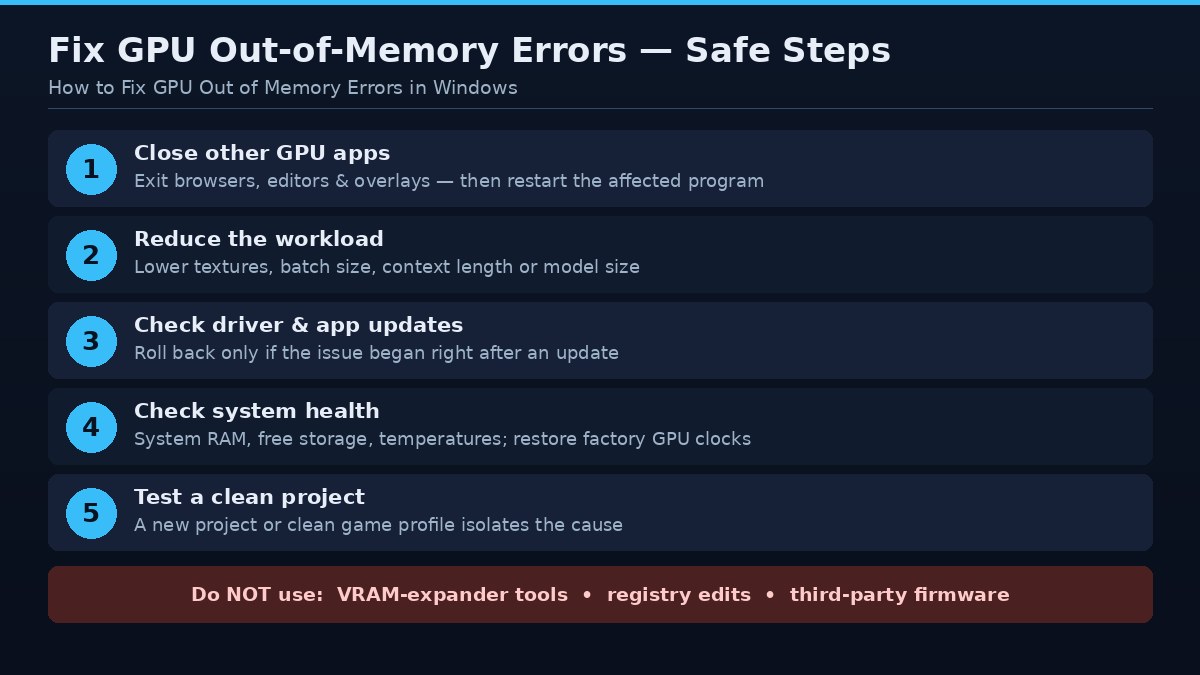
| Step | What to do |
|---|---|
| 1 | Close other GPU-using applications |
| 2 | Reduce the workload’s memory demand — lower texture quality, or reduce batch size, context length, image dimensions, or model size |
| 3 | Check driver and application updates |
| 4 | Check system RAM pressure and storage, and whether the error is limited to one project |
| 5 | Test a clean project or game profile |
| Never | Do not use unofficial VRAM-expander tools |
Quick answer
Start by closing other GPU-using applications and reducing the workload’s memory demand. Then check driver and application updates, system RAM pressure, and whether the error is limited to one project. Do not use unofficial VRAM-expander tools.
Understand the symptom before changing settings
Write down what happens, when it happens, and whether it can be reproduced. Does the problem occur at startup, when loading a level, after several minutes, when opening a large project, or only at a particular setting? Does the application close, display an error, freeze, or continue with reduced performance? The timing often narrows the possible causes.
Record the exact GPU, driver, application version, operating system, system RAM, and workload settings. If the problem began after an update, note that date and version. Keep a copy of any error message. Avoid changing several driver and registry settings at once, because doing so makes it difficult to identify the cause and may create a second problem.
Identify the application and failure point
Record whether the error occurs while launching, loading assets, entering a level, rendering, or generating output. A failure during model loading can have a different cause from an error after a long session. Save the full error message and note whether the application closes or recovers.
Check dedicated and shared GPU memory
Use Windows Task Manager’s GPU performance view and a reputable monitoring utility to inspect memory activity. Understand the difference between dedicated memory and shared GPU memory. Shared memory is not a substitute with identical performance, and a high allocation does not automatically prove exhaustion. Check whether other processes are using the GPU.
Reduce the active workload
In a game, lower texture quality or disable optional high-resolution assets as a test. In an AI application, reduce batch size, context length, image dimensions, or model size. In a 3D project, simplify high-resolution textures or scene assets. Make one change at a time and repeat the operation.
Close competing GPU applications
Exit unnecessary games, browsers with many hardware-accelerated tabs, video editors, capture software, and GPU overlays. Save active work before closing programs. Restart the affected application after closing other processes so that it can request resources again.
Update or roll back carefully
Check the GPU manufacturer’s official driver release notes and the application’s support notes. If the issue began immediately after a driver update, a supported rollback may be worth testing. Avoid third-party driver bundles and do not interrupt an installation. Record the original version before changing it.
Check system RAM, storage, and stability
Low system RAM, a full drive, unstable overclocks, overheating, or power problems can complicate GPU workloads. Restore factory GPU settings, check temperatures, and ensure adequate free storage. If several unrelated applications fail, investigate system stability rather than treating the issue as one game’s memory problem.
Test a clean project or game profile
Create a new project or use a clean game configuration if possible. If the clean workload succeeds, the original project may contain an unusually large asset, corrupt cache, plugin conflict, or problematic setting. Preserve the original files and work on a copy.
Safe troubleshooting sequence
Begin with reversible application-level changes. Save work, close unnecessary GPU-accelerated applications, and restart the affected program. Check whether an official update addresses the issue. If you change a graphics option, record the original value and test one option at a time. If the application offers a lower-memory mode, smaller texture setting, reduced batch size, or project optimization option, use the documented control rather than an unofficial patch.
Next, inspect system conditions. Check GPU temperature, power behavior, system memory pressure, storage availability, and background processes. A system can appear to have a VRAM problem when the actual cause is a driver reset, overheating, unstable overclock, insufficient system RAM, or a damaged application cache. Restore factory GPU clocks if the card is overclocked and test stability before making further changes.
If the problem persists, collect logs and reproduce it with the smallest possible workload. Compare a new project or clean game profile with the original one. If the clean workload works, the issue may relate to a particular asset, configuration, plugin, or save. If all workloads fail, investigate the driver, operating system, and hardware more broadly. Use official support channels for driver cleanup or firmware procedures.
What not to do
Do not download unknown executables advertised as VRAM expanders, memory cleaners, or guaranteed stutter fixes. Software cannot increase the physical dedicated memory installed on a discrete GPU. Avoid registry edits copied without a clear explanation, disabling security services, or flashing unofficial firmware. These steps can destabilize a system and make diagnosis harder.
Do not assume that a higher memory allocation is itself a fault. Some applications reserve memory for caching. Do not publish a benchmark claim from a single run or infer a hardware defect from one crash. Verify the issue, preserve logs, and distinguish observed facts from possible explanations.
Frequently asked questions
Can I increase dedicated VRAM in Windows?
Windows settings cannot add physical memory to a discrete GPU. Some integrated graphics systems allow firmware memory allocation changes, but this does not create additional system memory.
Does restarting fix out-of-memory errors?
It can release resources held by applications, but it does not solve an underlying workload that consistently exceeds available memory.
Should I increase virtual memory?
A page file can help system commit capacity in some situations, but it does not turn storage into fast dedicated VRAM.
Why does the error happen only in one game?
The game may have a specific asset, setting, memory-management issue, or software conflict. Compare a clean profile and another workload.
Is an out-of-memory error proof my GPU is defective?
No. It can be caused by software, settings, project size, system pressure, or hardware instability. Collect evidence before concluding that the card has failed.
Conclusion
Treat the error as a symptom, not a diagnosis. Reduce the workload safely, check the software stack, and use repeatable tests to identify whether memory capacity is genuinely the limit.
A methodical approach is safer and more effective than applying a collection of unrelated tweaks. Identify the symptom, capture the configuration, change one variable at a time, and confirm that the result is repeatable. If the issue appears to be hardware-related or involves repeated driver resets, use manufacturer diagnostics or qualified repair support rather than risking the system with undocumented fixes.