
How to Reduce VRAM Usage in Games Without Losing Visual Quality
Introduction
High graphics settings can make a game look better, but not every setting has the same visual benefit or memory cost. When a game approaches the practical memory budget of a graphics card, players may notice texture pop-in, inconsistent frame times, or errors. The solution is not always to lower every option. A more effective approach is to identify which settings and background processes contribute to the workload, then adjust them one at a time while checking image quality.
Graphics memory is a finite working space, but the way an application uses it is shaped by its engine, data structures, runtime settings, and hardware. A useful guide must therefore explain both the general principle and the conditions that can change the outcome. The same GPU can behave differently after a software update, with a different model or game scene, or when another application is using the graphics processor.
This article focuses on practical understanding rather than a universal rule. It explains the terminology, identifies the variables worth checking, and provides a repeatable approach for evaluating a real system. Where a result depends on a specific application, that dependency should be made explicit instead of turning one observation into a claim about every workload.
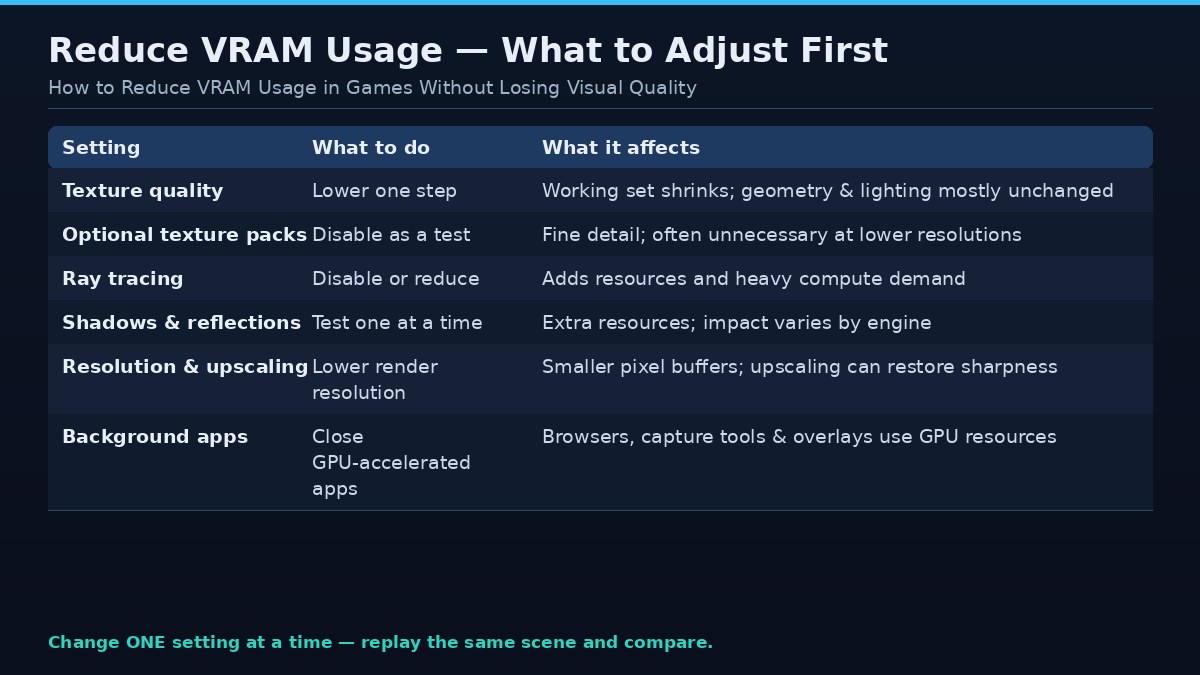
| Action | What it does |
|---|---|
| Lower texture quality one step | May reduce the working set while leaving geometry and lighting largely unchanged |
| Disable optional high-resolution texture packs | Removes assets that may be unnecessary on a limited-memory card |
| Tune ray tracing and shadows | Ray tracing adds resources and compute demand; shadows are often cheap to lower first |
| Lower resolution or use upscaling | Lowers pixel-related buffer requirements |
| Close competing GPU applications | Reduces competing allocations that may contribute to VRAM pressure |
Quick answer
Start with texture quality and optional high-resolution asset packs, then review ray tracing, shadow and resolution settings. Close unnecessary GPU-accelerated applications and verify the effect with repeatable tests.
Key concepts
Before changing hardware or settings, distinguish capacity from allocation and performance. Capacity is the physical amount of local graphics memory installed on the card. Allocation is the amount an application or driver has reserved or committed at a particular time. Active working-set demand is the data that must be available for the current workload to proceed efficiently. Monitoring tools can expose useful clues, but they may report different metrics and should not be treated as interchangeable.
Also distinguish memory capacity from bandwidth and compute throughput. Capacity determines how much data can reside locally. Bandwidth describes the rate at which data can move between memory and the GPU. Compute throughput describes how quickly the GPU can execute operations. A workload may be limited by any one of these factors, or by the CPU, storage, cooling, power limit, or software implementation.
Check what is actually using memory
Use a trusted monitoring tool or the operating system’s GPU performance view to inspect dedicated and shared GPU memory. Check whether a browser, recording application, video player, creative tool, or another game is using the GPU. Remember that allocation is not identical to active demand. Record the game scene and settings before changing anything.
Adjust texture quality first
Texture quality is often a useful control because high-resolution assets can require more memory. Lowering textures one step may reduce the working set while leaving geometry, lighting, and other visual features largely unchanged. The visible impact depends on the game and display resolution. Compare surfaces at normal viewing distance rather than judging only a close-up screenshot.
Review optional texture packs
Some games offer high-resolution texture downloads or optional asset packs. These can improve fine surface detail but may be unnecessary on a limited-memory card or at lower display resolutions. Disable the optional pack as a test, restart the game if required, and compare the result. Keep the base game files intact and use the official launcher for changes.
Tune ray tracing and advanced effects
Ray tracing can add resources and significant compute demand. If the game is unstable, compare a run with ray tracing disabled or reduced. Also test high-resolution shadows, reflections, and other advanced effects individually. Do not assume that every effect is a major VRAM consumer; the impact varies by engine.
Resolution and upscaling
Reducing output or render resolution can lower pixel-related buffer requirements and GPU workload, though it may soften the image. Supported upscaling can improve perceived sharpness at a lower internal rendering resolution, but it does not eliminate all memory use. Test image quality and performance together, and disclose the upscaling mode when comparing results.
Close competing applications
Browsers with hardware acceleration, video editors, game launchers, overlays, capture tools, and desktop effects can consume GPU resources. Close applications you do not need while gaming. Avoid disabling essential security or operating-system services. If you record gameplay, compare memory use with and without the recording application to understand its impact.
Use a repeatable tuning process
Change one setting, replay the same scene, and record memory use, average FPS, low-percentile performance, and visual quality. Repeat the test because streaming and caching can change between runs. Keep a note of the original preset so that settings can be restored. If reducing textures has no effect, investigate CPU, storage, thermal, and driver issues rather than continuing to lower image quality.
A step-by-step way to investigate
First, write down the exact system configuration. Include the graphics card, memory capacity, driver, operating system, CPU, system RAM, storage, and application version. Record the workload and its settings. In a game, include resolution, texture quality, ray tracing, upscaling, and the scene being tested. In an AI or workstation task, include the model or project, precision, batch size, context length, plugins, and offloading options.
Second, create a baseline using a repeatable task. Close unnecessary background applications, allow the workload to settle, and repeat the same action several times. Capture performance, memory allocation, system RAM use, GPU utilization, and any visible errors or quality changes. Do not rely on one short run. A background update or first-time shader compilation can distort a measurement.
Third, change one setting at a time. This is essential. If several options are changed simultaneously, the cause of an improvement or regression cannot be identified. Save the original settings, test the new configuration, and restore the baseline before testing another variable. When possible, use logs or frame-time captures instead of relying only on a screenshot.
Finally, report what the test does and does not prove. A single application version and one system configuration cannot establish a universal hardware requirement. Explain the test environment, disclose limitations, and distinguish measured results from estimates. This is especially important when publishing advice that readers may use to spend money or change a production workflow.
Common pitfalls
A common pitfall is assuming that a high allocation reading proves the card is out of memory. Software may reserve resources for caching, and different tools may expose dedicated usage, shared usage, committed memory, or budget information. Another pitfall is assuming that more VRAM automatically makes a GPU faster. Additional capacity can prevent a capacity-related problem, but it does not increase the number of shader cores or guarantee higher bandwidth.
A third pitfall is ignoring software changes. Drivers, game patches, AI frameworks, model formats, and operating-system updates can change memory behavior. Record versions and dates, and retest important claims after substantial updates. Avoid undocumented registry edits or utilities that promise to manufacture additional dedicated VRAM; software cannot change the physical memory installed on a discrete graphics card.
Frequently asked questions
Which setting reduces VRAM the most?
Texture quality and optional high-resolution texture packs are often good starting points, but the largest effect varies by game.
Does lowering resolution reduce VRAM?
It can reduce some pixel-related resources and overall rendering workload, but texture assets may remain the same size.
Do overlays use VRAM?
Some overlays and capture tools use GPU resources. The impact varies, so test with unnecessary tools closed.
Can I clear VRAM manually?
Closing applications that use the GPU can release resources. Avoid unofficial memory-cleaner utilities that promise guaranteed improvements.
Will lower VRAM usage increase FPS?
Only if memory pressure was affecting performance. If the GPU core, CPU, or another component is the bottleneck, FPS may barely change.
Conclusion
Preserve the settings that matter visually and lower only options that produce measurable memory pressure. Diagnose first; do not sacrifice image quality blindly.
The most dependable approach is to define the workload, measure it under controlled conditions, and interpret memory readings alongside performance and system behavior. Use manufacturer documentation for specifications, application documentation for supported settings, and repeatable tests for performance claims. That produces advice that is both more accurate and more useful than a one-number rule.